
ExamTools uses a saved digital signature for NCVEC Form 605 and exam pass certificates. You need to set this up before you can sign anything during a session.
Pro tip: A smartphone or tablet gives the best-looking results since you can sign with your finger naturally.
Prerequisites
- A verified ExamTools account
Steps
Go to exam.tools and sign in under Assist with an Exam.
Click Profile in the upper left navigation.
Find the Saved Signature section on your profile page and expand it.
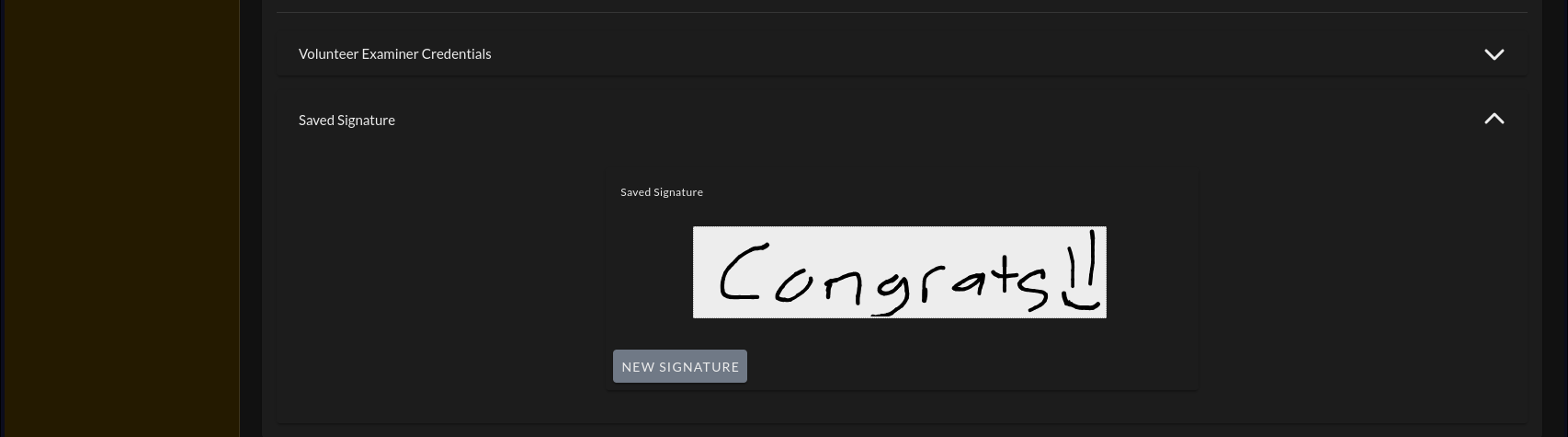
Click New Signature. A white box labeled Sign Here will appear.
Use your mouse, trackpad, or touchscreen to draw your signature in the box. Sign the same way you would sign a paper form — this signature appears on official FCC documents.
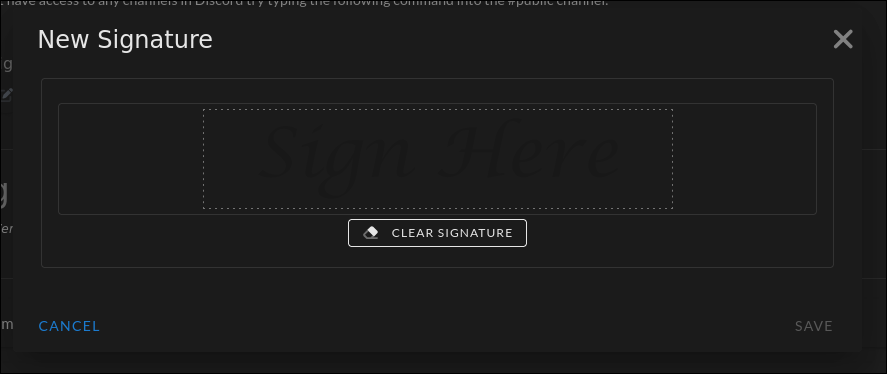
Click Save.
Verify
Your signature preview appears in the Saved Signature section of your profile. Confirm it looks the way you intend before joining a session.
Updating your signature
Return to your profile at any time, expand Saved Signature, and click New Signature to draw a new one. The updated signature will be used on all future documents.
Updating your signature does not change signatures already applied to past sessions.