
VEC accreditation in ExamTools is automatic — you do not add it yourself. Your VEC maintains a list that ExamTools syncs with. This page explains how that process works and how to confirm your accreditation is showing correctly.
How it works
Once your VEC officially confirms your accreditation, they add you to their list. ExamTools reads VEC records every 4 hours, but VECs update on their own schedule. Allow up to 24–48 hours after your VEC confirms your accreditation before expecting it to appear.
Confirm your accreditation is active
Sign in to exam.tools under Assist with an Exam.
Go to your Profile (upper left navigation).
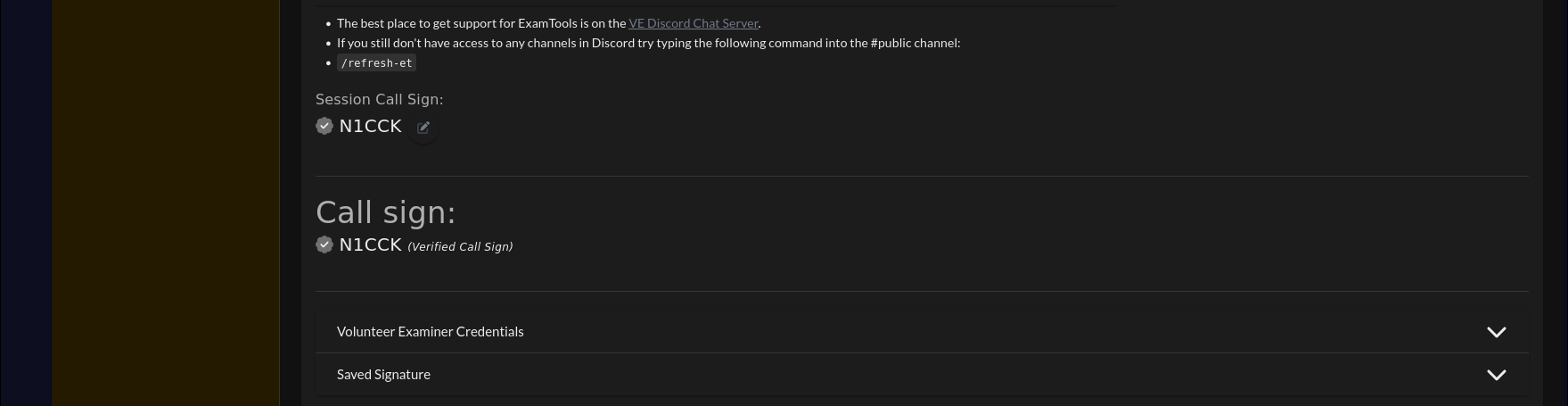
Scroll down to Volunteer Examiner Credentials and click the arrow on the right to expand it.
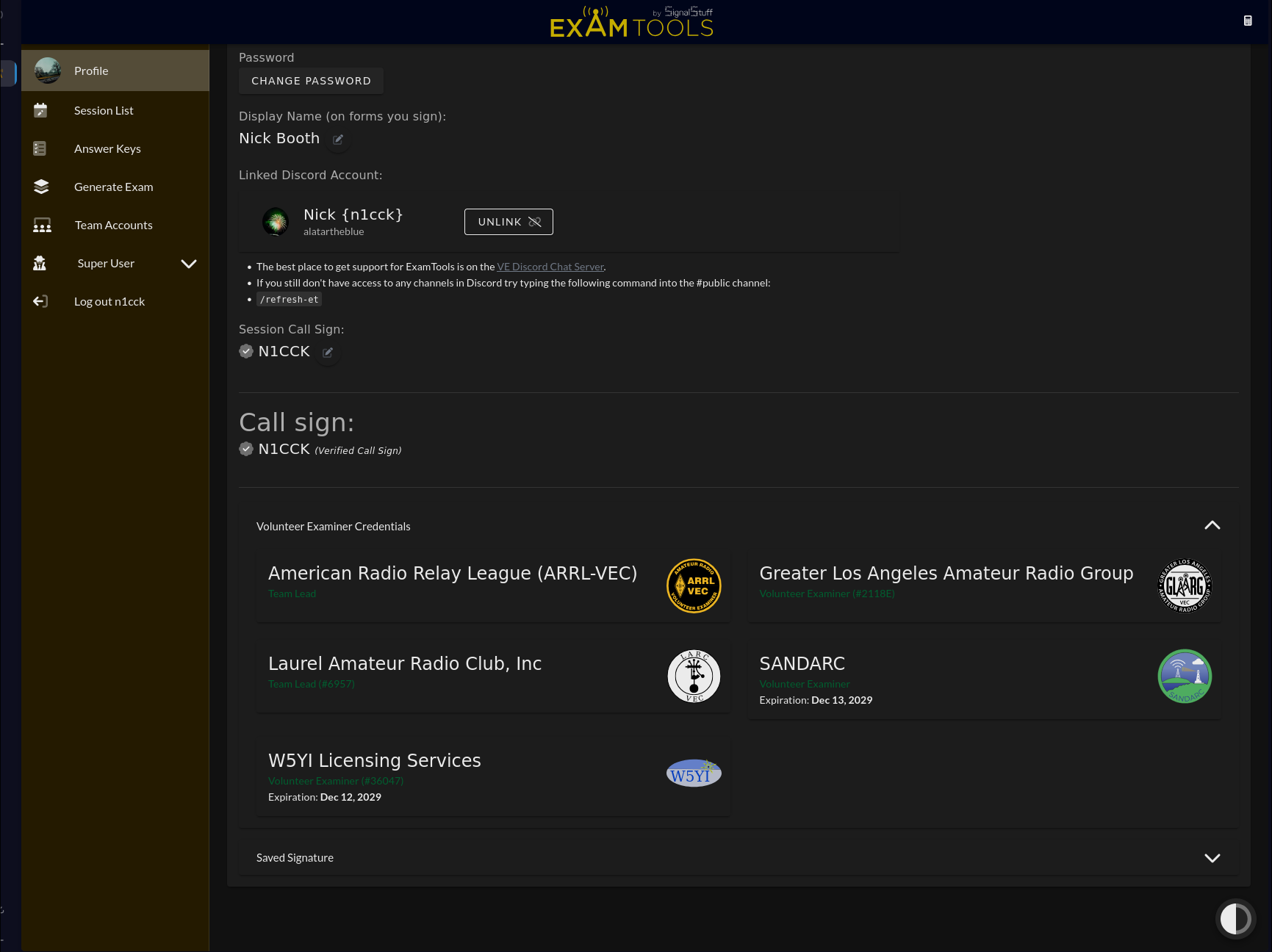
Your accreditation should appear here, listing your VEC and whether you hold Volunteer Examiner or Team Lead status.
Let your team lead know your accreditation is showing correctly and you are ready to participate in sessions.
If your accreditation is not showing
- Confirm your VEC has officially processed your accreditation on their end.
- If it has been more than 48 hours since your VEC confirmed, contact your VEC directly.
- ExamTools syncs automatically — ExamTools staff does not need to be contacted for a normal accreditation sync.
Adding accreditation from a second VEC
If you become accredited with an additional VEC after your initial setup, the same automatic process applies. Your new VEC adds you to their list, ExamTools syncs, and the new credential appears under Volunteer Examiner Credentials in your profile. No action is needed in ExamTools itself.
Verify
Your profile shows your VEC name and your credential type (Volunteer Examiner or Team Lead) under Volunteer Examiner Credentials.