
This guide walks through creating a production ExamTools account and getting your callsign verified. You need to complete this before you can sign forms digitally or participate in computer-based sessions.
Do you need an account? VEs who will only sign paper forms with a pen do not need an ExamTools account. You only need one if you will be signing forms digitally, proctoring computer-based exams, or running sessions as someone with team lead credentials. When in doubt, ask your team lead.
Setting up a sandbox account? Follow the same steps, but substitute examtools.dev for every exam.tools URL. A sandbox account is separate from your production account and requires its own registration and callsign verification.
Prerequisites
- Your FCC callsign (you must already be a licensed amateur radio operator)
- Access to the FCC Universal Licensing System (ULS) with your FCC username and password
Part 1: Create the account
Go to exam.tools.
If you already have a HamStudy account, skip to step 4 — ExamTools and HamStudy share the same login system, so your existing credentials work on both sites.
Click Sign Up and fill in the registration form:
- Username — your login name. Using your callsign is strongly recommended; it makes it easy for team leads to find and add you to sessions.
- Email address — used for account confirmation and notifications.
- Password — choose a strong, unique password. You will enter it when signing forms and grading exams, so make it something you can type quickly under mild pressure.
Check your email for a confirmation message from ExamTools. Click the confirmation link, or enter the confirmation code if the form prompts for it.
Don’t see the email? Check your spam or junk folder.
Sign in at exam.tools using the button labeled Assist with an Exam or Assist with or Manage Exams.
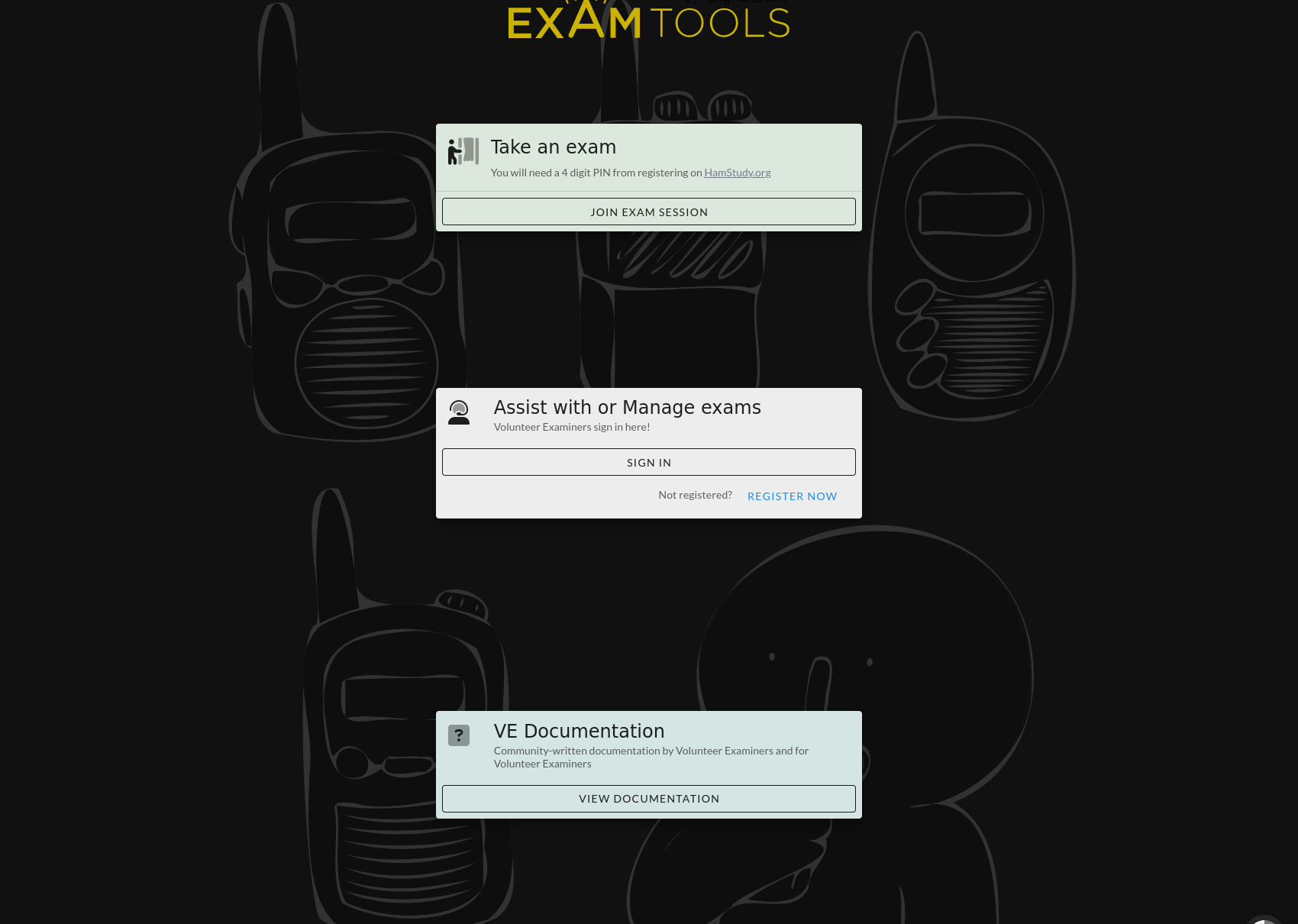
After signing in, the page shows instructions for verifying your account. Click Profile in the upper left navigation to continue.
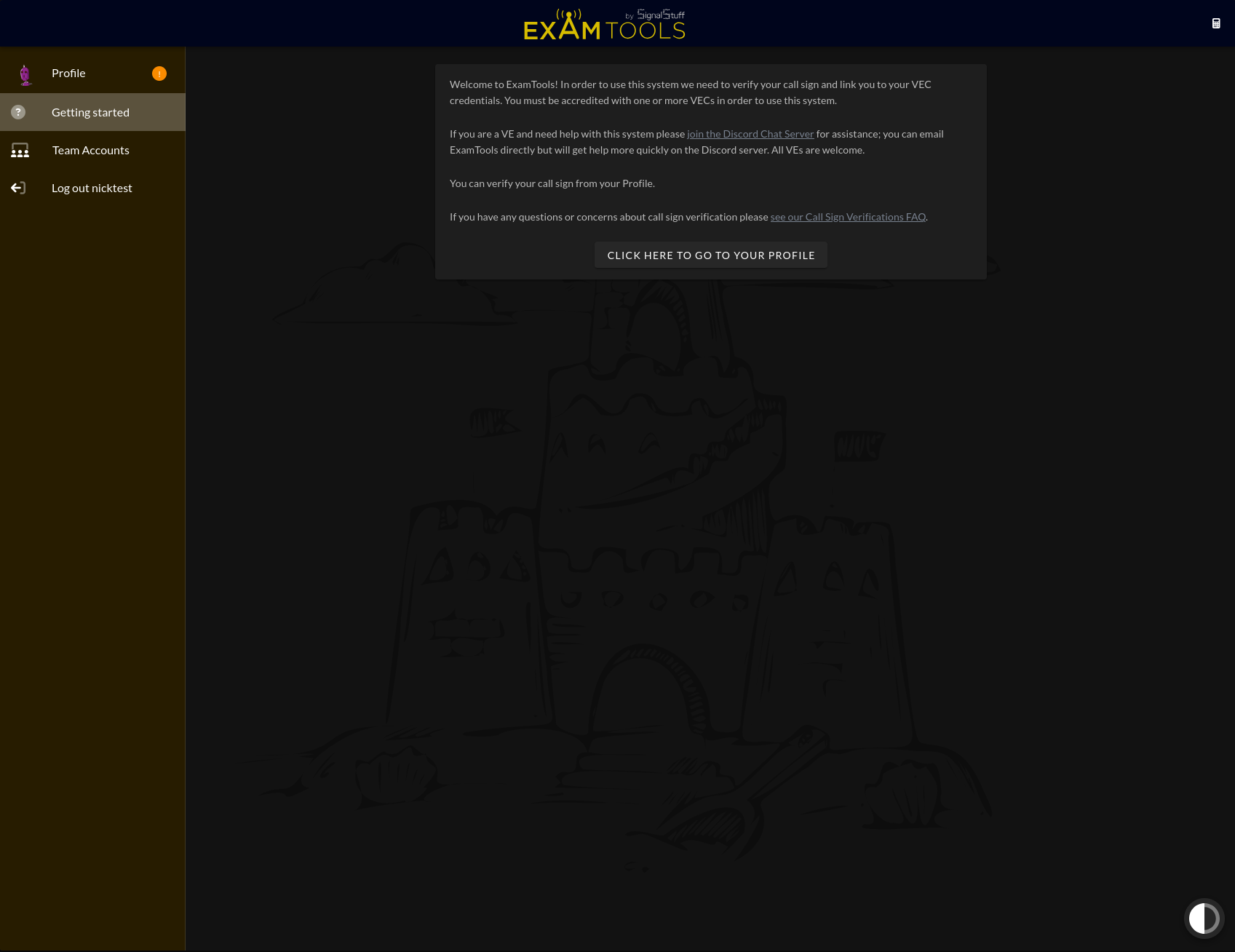
Part 2: Verify your callsign
Callsign verification is required for all ExamTools accounts. It establishes that the person who created the account actually owns the callsign they registered with.
The process requires downloading your Official License Copy PDF from the FCC ULS — not a scan, not a photo, and not the Reference Copy. The Official Copy contains digital markers that ExamTools uses to validate authenticity.
Get your Official License Copy from the FCC
Follow the FCC’s guide to downloading your Official Copy. You need the Official Copy specifically — not the Reference Copy, and not a scan or photo of your paper license.
Official Copy vs. Reference Copy: Both are available from the FCC ULS, but only the Official Copy contains the embedded digital certificate that ExamTools validates against. The Reference Copy looks similar but will be rejected.
Submit the verification request in ExamTools
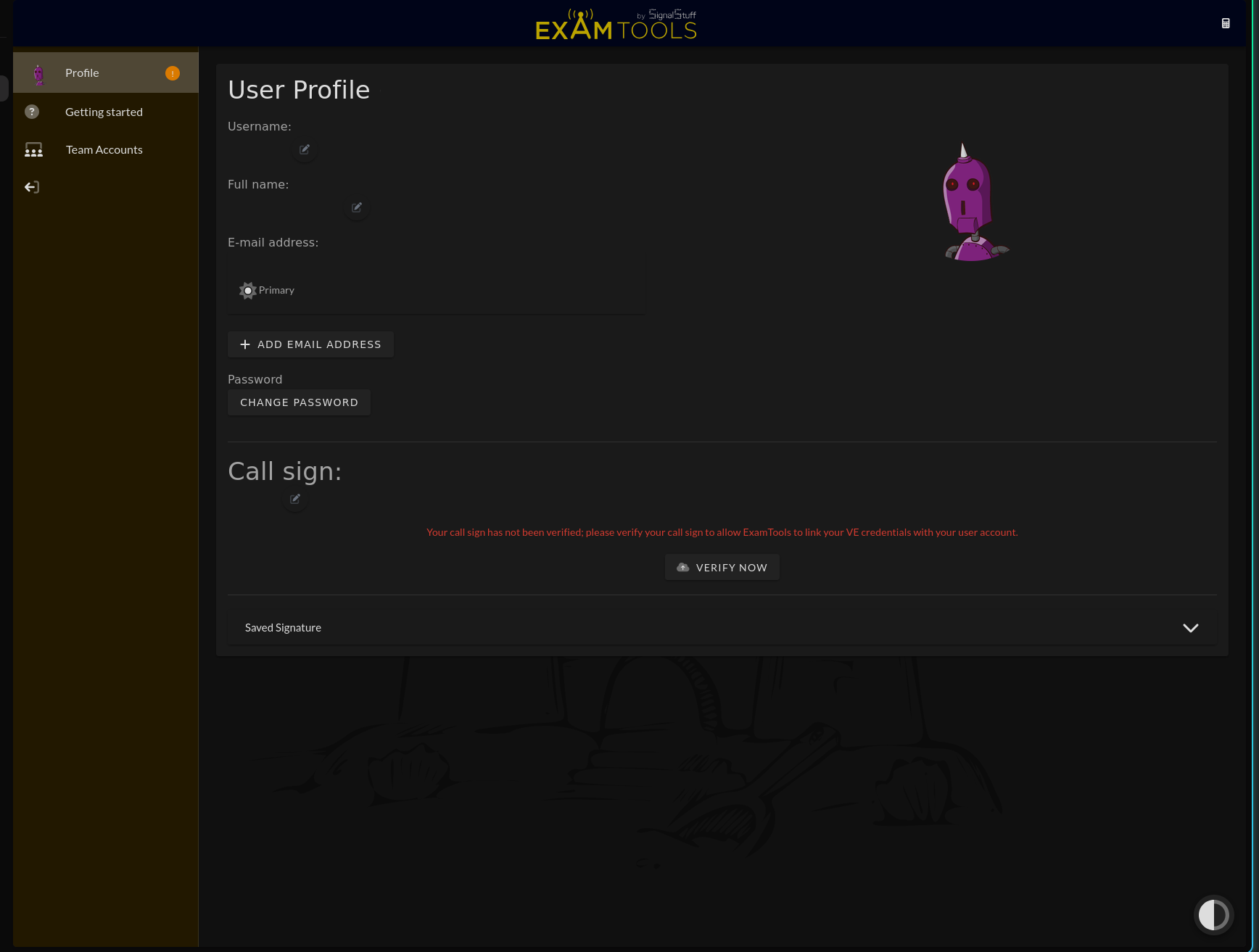
On your ExamTools Profile page, find the Call sign section and click Verify Now.
In the dialog that opens, upload the Official Copy PDF you downloaded from the FCC.
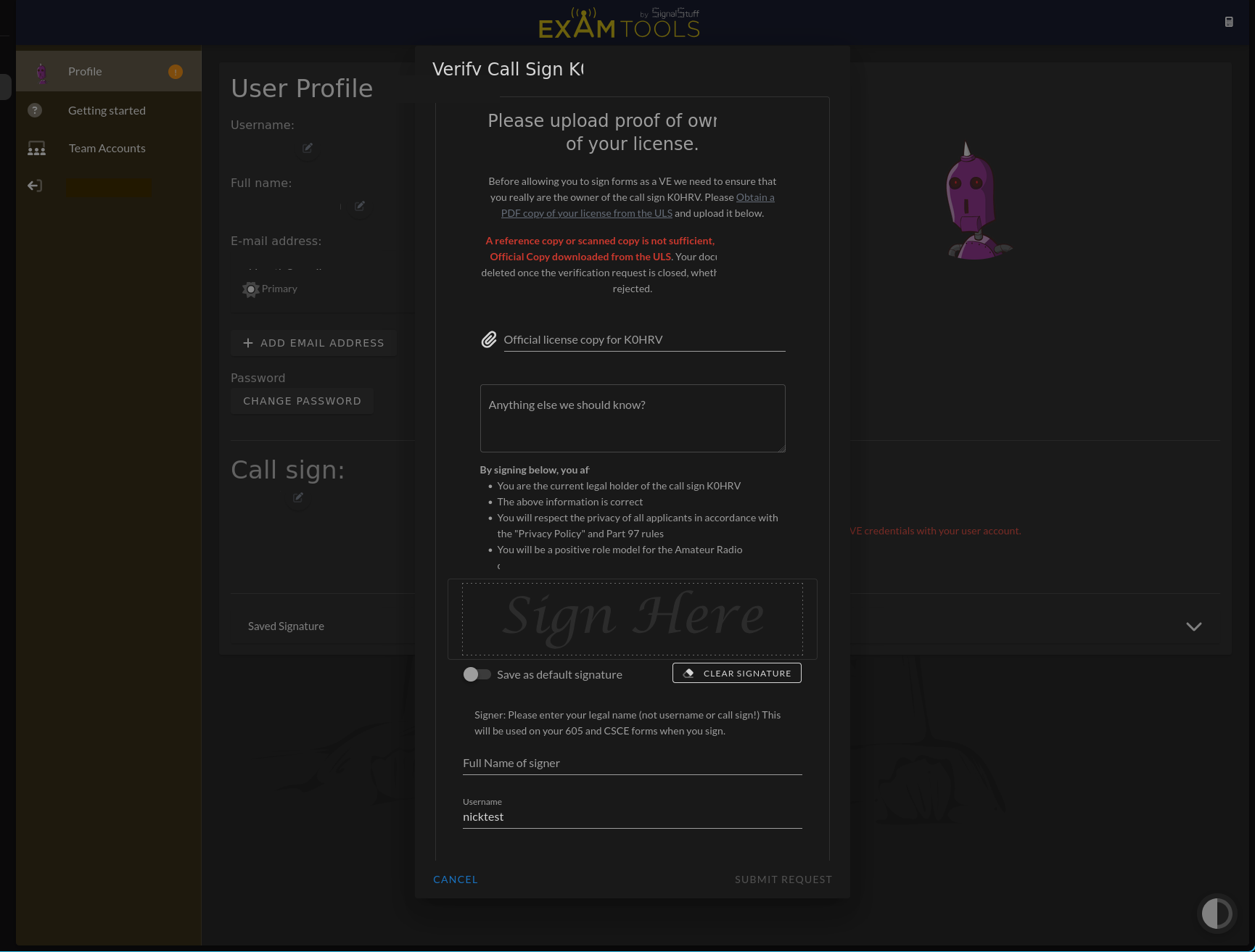
Read and sign the verification form. By signing, you are declaring under penalty of law that you are the owner of this callsign. Falsifying this form constitutes forgery.
Click Submit Request.
Part 3: Wait for confirmation
Account verification is reviewed manually and can take up to 24 hours. You will receive an email from ExamTools when your account has been verified.
You can still explore ExamTools while you wait, but you will not be able to join sessions or sign forms until verification is complete.
After verification
Once you receive the confirmation email:
- Your VEC credentials will automatically appear in your profile under Volunteer Examiner Credentials once your VEC syncs (see Confirm your VEC accreditation →)
- Let your team lead know you are set up and ready to participate in sessions
Troubleshooting
Confirmation email never arrived Check your spam folder first. If it isn’t there after a few minutes, try creating the account again with the same email address — the system will re-send the confirmation.
Verification took longer than 24 hours Verification is done manually and occasionally takes longer during busy periods. If it has been more than 48 hours with no response, reach out through the ExamTools support channel.
“Official Copy” rejected or callsign not recognized Make sure you uploaded the Official Copy and not the Reference Copy. Both are PDFs available from the ULS, but only the Official Copy has the embedded certificate. If you recently upgraded your license, there may be a short delay before the new license is available as an Official Copy in the ULS.
Wrong callsign registered If you entered the wrong callsign during sign-up, update it on your Profile page before submitting a verification request. Submitting a verification for a callsign you do not hold will be rejected.