
After all applicants are marked complete, a Co-Owner finalizes the session by entering their ExamTools password. Finalization locks the session and prevents further changes.
Prerequisites
- All applicants have status Finalized (see Complete an Applicant →)
- You have Co-Owner session permissions
Applicants who are not finalized will block finalization. The system will reject finalization if any applicant has a passing score on a non-voided exam without being completed.
Finalize the session
In the session view, click Finalize Session.

A confirmation dialog appears:
“Are you sure you want to finalize this session? Once finalized no more changes can be made. Before you finalize the session, make sure you have reviewed and completed any applicants with passing scores on any exams.”
Click Review Forms to preview the signed session paperwork as a PDF before proceeding.
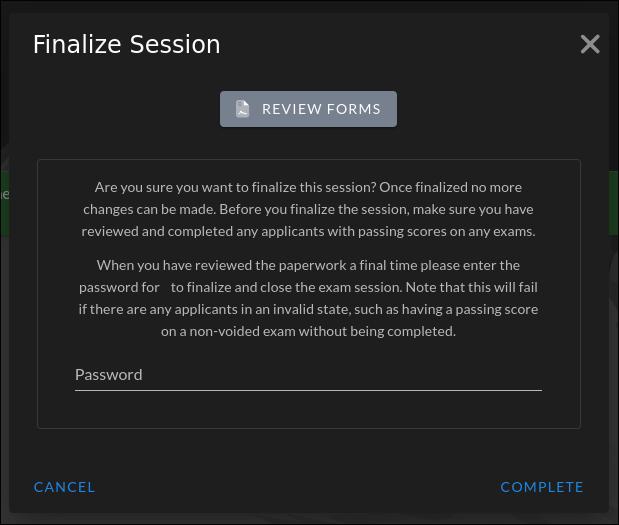
Enter your ExamTools password when prompted:
“When you have reviewed the paperwork a final time please enter the password for [your username] to finalize and close the exam session.”
Click Complete.
The session status changes to Closed.
Unfinalize a session
If you need to make changes after finalization, a Co-Owner can reopen the session.
Click Unfinalize Session in the session view.
A confirmation dialog appears:
“Are you sure you want to reopen this session? This can be dangerous and makes it very easy to put data into an inconsistent state. Only proceed if you know what you are doing!”
Confirm to reopen. No password is required.
The session returns to In progress status.
Download session files
After finalization, use the Print and Download menus in the session view to retrieve forms and export files.
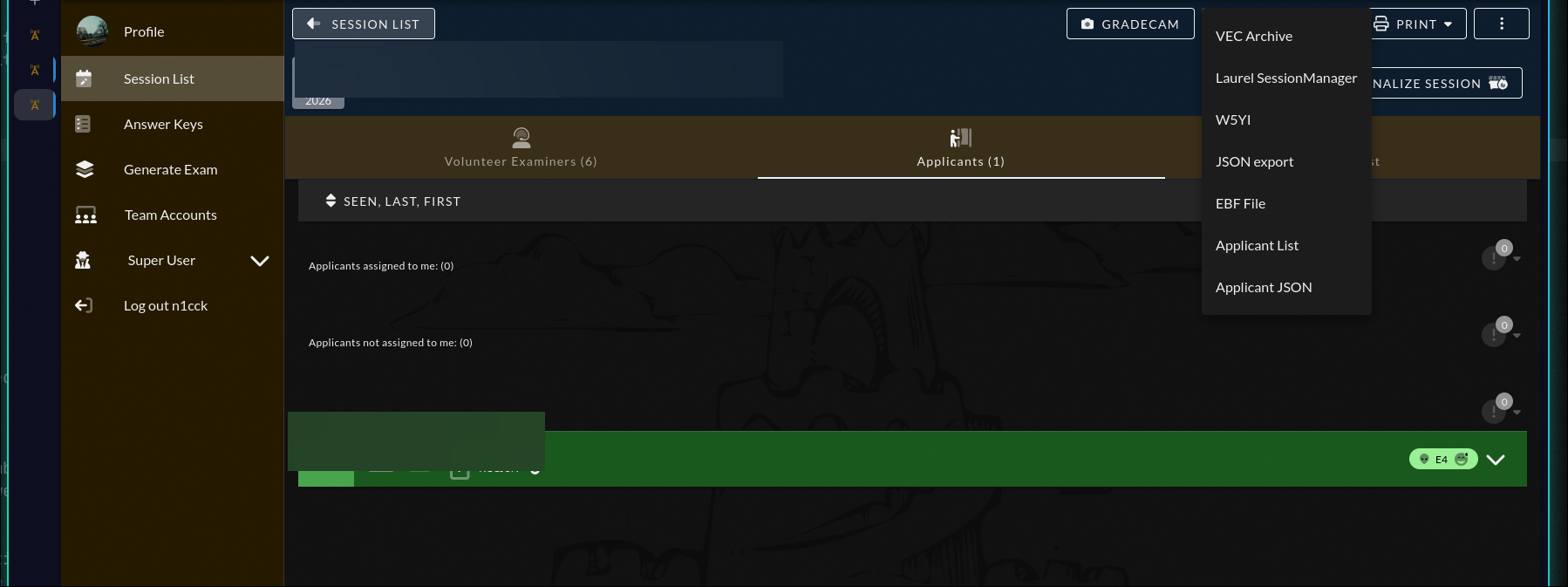
Some items are only available once the session is closed.
Print menu
PDF documents for review, filing, or submission:
| Item | Contents |
|---|---|
| Final forms | All signed final session forms in a single PDF — the primary document package for VEC submission |
| Signed forms | Signed forms only (excludes unsigned or voided documents) |
| All forms | Every form generated for the session, regardless of status |
| Session Manifest | Summary listing of all applicants and their exam results |
| Form 605 | FCC Form 605 for each applicant |
| CSCE | Certificate of Successful Completion for each applicant who passed |
| Results | Exam scores and pass/fail outcomes |
Download menu
Export files for submission to your VEC or import into external systems:
| Item | Format | Description |
|---|---|---|
| VEC Archive | ZIP | Complete session package for VECs that accept electronic archives — requires finalized session |
| EBF File | EBF | Electronic Blue Form for VECs that use this format — requires finalized session |
| W5YI | CSV | Export for W5YI VEC submission — requires finalized session |
| Laurel SessionManager | CSV | Import file for Laurel VEC SessionManager |
| Applicant List | CSV | Basic applicant information for your own records |
| JSON export | JSON | Full session data export |
Which format does your VEC require? Consult your VEC’s guidance. Most VECs accept either the VEC Archive or a VEC-specific format (EBF, W5YI, Laurel). The VEC Archive and VEC-specific exports are only available after the session is finalized.
Verify
The session status shows Closed in the sessions list after finalization.