
After all of an applicant’s exams are complete, the applicant and each assigned VE sign the NCVEC Form 605 and CSCE. Once all signatures are collected, the applicant is marked complete and their CSCE can be emailed to them.
Prerequisites
- The applicant’s exams are all graded or voided
- The applicant is in Ready to sign status
GradeCam applicants: Applicants who took a paper exam graded with GradeCam have not yet signed into ExamTools. Before they can sign their forms, they must connect to the session with their PIN and have a VE approve their join request — the same process described in Check In Applicants. Direct them to sign in with their PIN once grading is complete.
Applicant signs
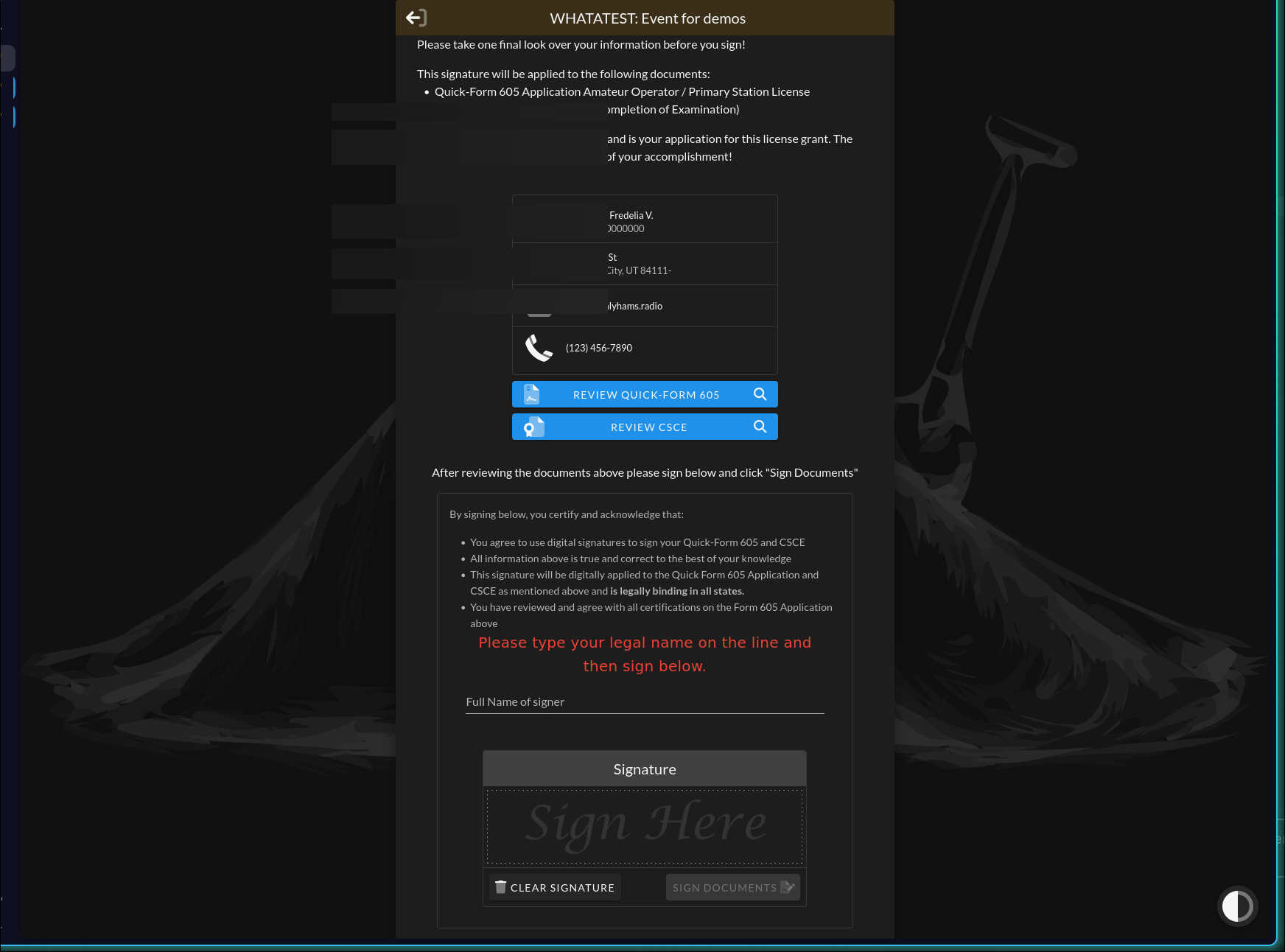
The applicant signs from their portal. After clicking Finish and Sign Forms from their dashboard, they are taken to the signing page.
Review the documents
Two preview buttons let the applicant review their forms before signing:
- Review Quick-form 605 — opens the Form 605 as a PDF
- Review CSCE — opens the CSCE as a PDF (for applicants who passed)
Sign
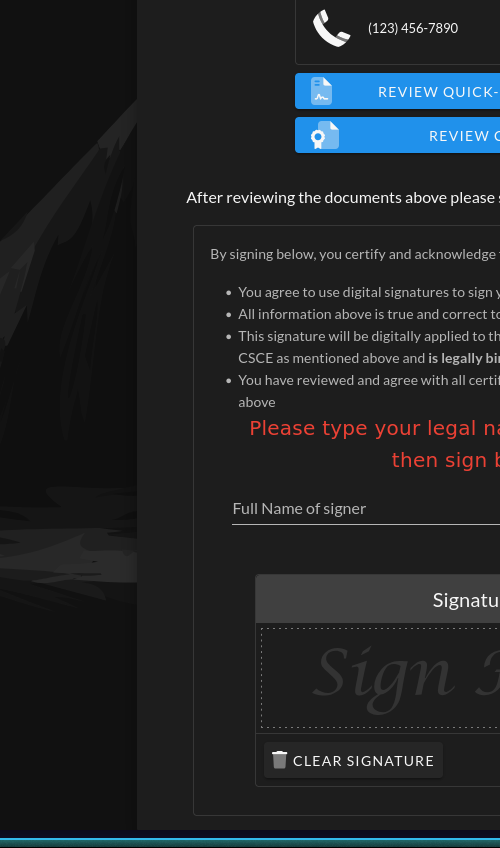
In the certification box, the applicant:
- Reads the certifications listed under “By signing below, you certify and acknowledge that:”
- Types their legal name in the name field
- Draws their signature in the signature pad
- Clicks Sign Documents (disabled until both the name and a signature are provided)
A final confirmation appears:
“Have you verified everything? Once past this step you cannot go back.”
Buttons: Finish Session (proceed) / Cancel (return).
The Clear Signature button erases the signature pad if the applicant wants to redraw.
Confirming signs both Form 605 and the CSCE in one step.
VE signatures
Each assigned VE signs from the session view. Three VE signatures are required before the applicant can be marked complete.
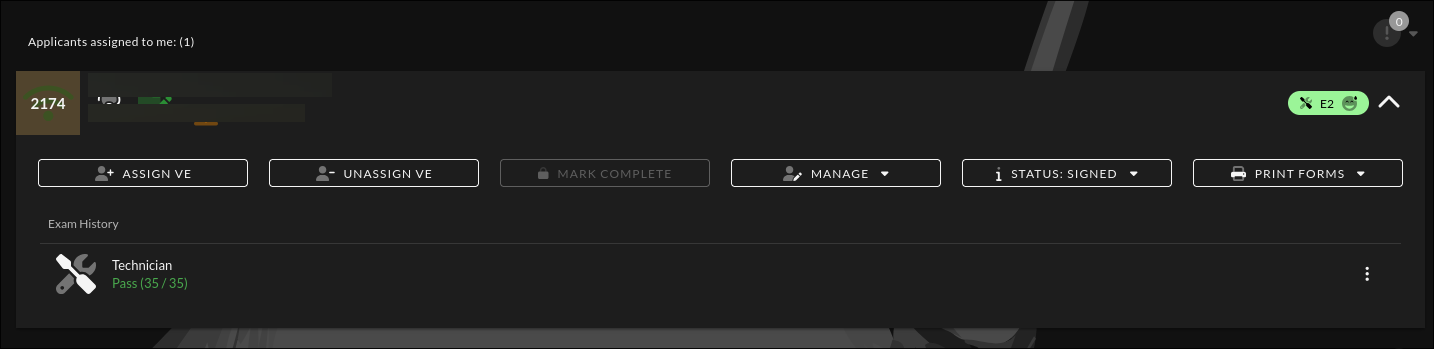
The signature indicator (file-signature icon with a badge showing the count of signatures collected) is visible on each applicant row. The tooltip reads “Click to manage signatures” when the applicant has already signed, or “Manage VE signatures after applicant signs” when they have not.
Click the signature indicator to open the list of assigned VEs. Each VE shows either a Sign button or a Signed badge.
Signing dialog
Clicking Sign next to a VE opens the signing dialog:
Title: “Are you ready to sign the 605 and CSCE?”
The dialog includes a statement that the signing VE certifies compliance with Part 97 and VEC instructions, and that the documents have been reviewed. It also states: “This constitutes a legally binding signature on both documents.”
Two tabs offer signature options:
- Use Saved Signature — applies the VE’s signature already on file
- Use New Signature — draw a new signature in the pad; an option to Save as default signature saves it for future use
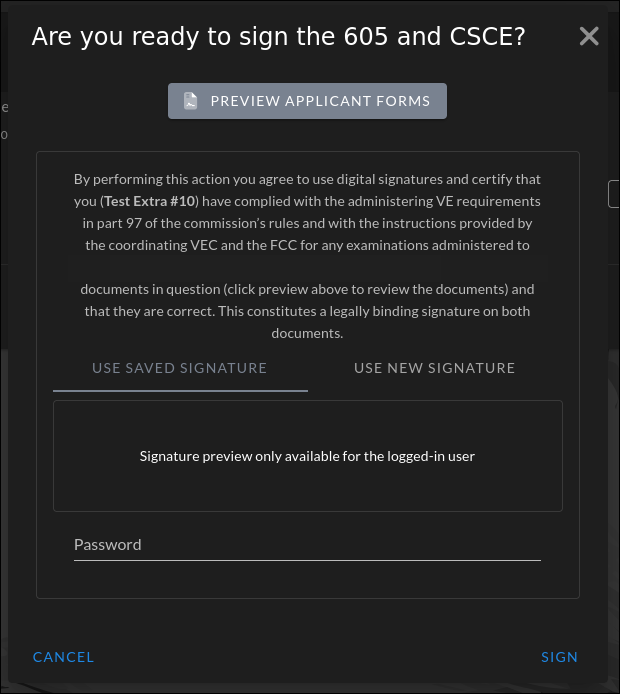
A Password field is required regardless of which tab is used.
Click Sign to submit. The VE’s entry in the list updates to Signed.
Mark Complete
Once the applicant has signed and all required VEs have signed, the Mark Complete button becomes active in the expanded applicant row. Requires Co-Owner session permissions. Click it to finalize the applicant record.
Finalizing locks the record and changes the applicant’s status to Finalized. This is required for every applicant before the session itself can be finalized.
See Managing applicants → for prerequisites and details.
Email the CSCE
After the applicant is finalized, Ve Admins and Co-Owners can email the CSCE to the applicant directly from ExamTools.
In the expanded applicant row, open the Manage menu and select Email CSCE.
- If the CSCE has not yet been sent, a confirmation appears: “Do you want to email the applicant their CSCE form as a PDF?”
- If the CSCE has already been sent once: “Do you want to email the applicant their CSCE again? You have already done so.”
- If it has been sent multiple times, the confirmation shows how many times it has already been sent.
The CSCE is only available to email if the applicant passed at least one element.
Verify
The applicant’s row shows status Signed after all required signatures are collected, and Finalized after Mark Complete is clicked.
The signature badge on the applicant row shows the current count of VE signatures (turns amber when under 3).