
Exams in ExamTools can be given in two ways:
- On a device (computer-based) — The applicant takes the exam on their own device through the ExamTools applicant portal. The rest of this page covers this workflow.
- On paper, graded with GradeCam — The applicant answers a printed bubble sheet. A VE scans it with a device camera to grade it automatically. See the Paper Exams section for this workflow.
Both methods can be used in the same session, and an individual applicant can take different elements by different methods.
Prerequisites
- An active session (status: In progress)
- The applicant checked in and at least three VEs assigned to them
Share the applicant login link (optional)
If the applicant needs a direct URL to sign in — common in remote sessions — click the applicant’s PIN badge in the session view. A menu appears with the option Copy Applicant Login Link. This copies the applicant’s personal portal URL to your clipboard.

Authorize the exam start
The applicant requests to start their exam from their portal. When they do, a red pending-action badge appears on the applicant list.
Click the badge or expand the applicant row to respond.
A dialog appears:
Start Element n exam?
“Is everything ready? This applicant is ready to begin their exam! Please make sure everything is prepared and all Volunteer Examiners are ready before approving their request.”
Click Approve. The exam begins on the applicant’s device.
The applicant’s exam interface
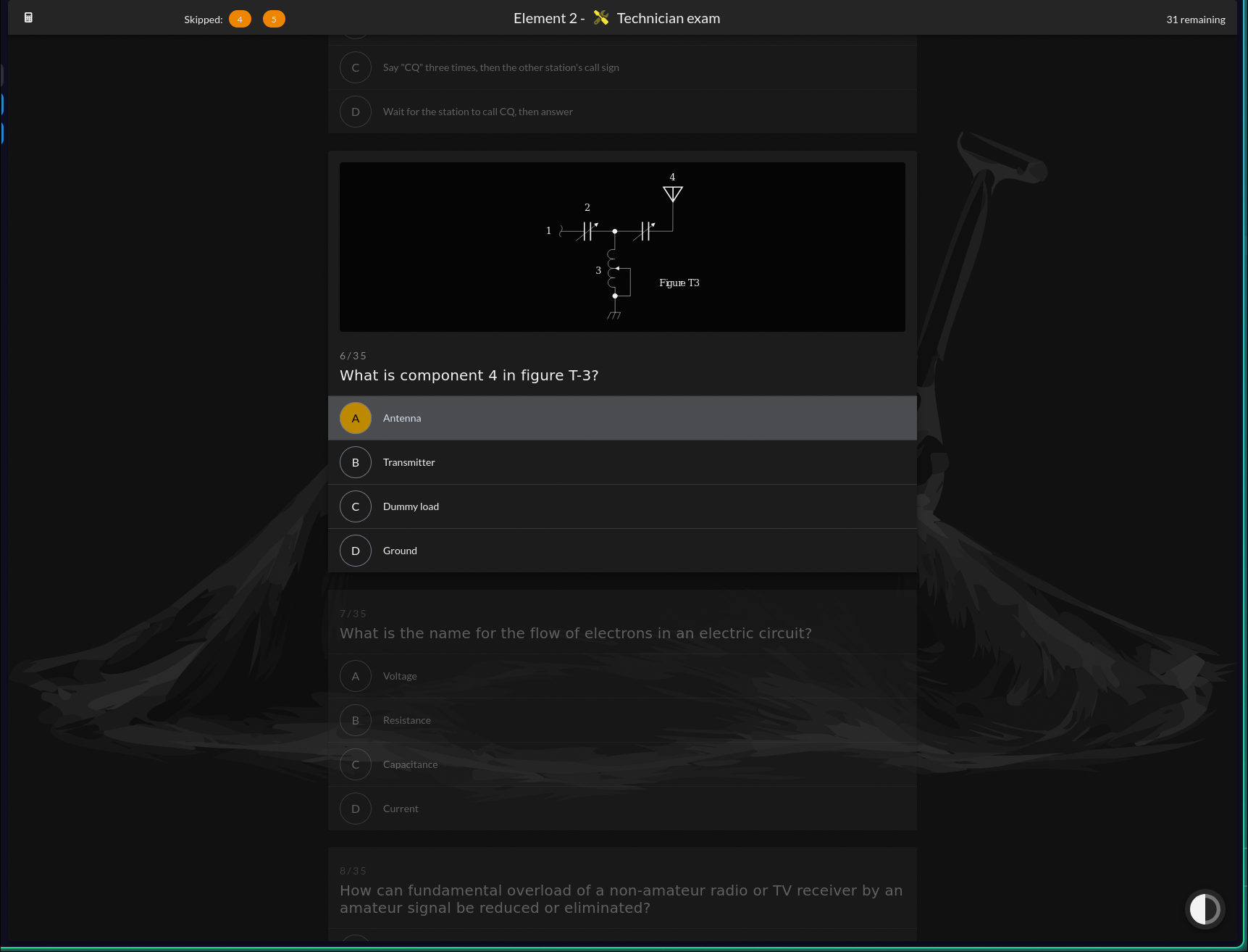
Once the exam starts, the applicant sees a scrollable page with all questions displayed as individual cards. Each card shows:
- The question number (e.g., 1/35)
- The question text
- A figure, if the question requires one — the applicant can click the figure to expand it full-screen
- Lettered answer choices (A, B, C, D) displayed as a list; the applicant clicks a choice to select it
Navigation:
- Questions that have not been answered yet appear as numbered chips in the toolbar at the top of the page. Clicking a chip scrolls directly to that question.
- A n remaining button at the bottom of the page scrolls to the next unanswered question.
- A scientific calculator is available at any time via the calculator icon in the toolbar.
Submitting the exam:
A Grade Exam button appears at the bottom of the question list and in the top-right of the toolbar once all questions are answered.
If there are unanswered questions, the button reads Stop and Grade Exam and clicking it prompts a confirmation: “You have not answered all questions; any question which is not answered will be marked wrong. Are you sure you want to stop the exam?”
After the applicant clicks Grade Exam (or confirms early submission), they see a waiting screen while the VE authorizes grading.
Exam progress in the session view
While the exam is in progress, the element chip on the applicant row in the session view updates in real time, showing questions answered out of the total (e.g., “In Progress (18 / 35)”).
Authorize grading
When the applicant submits their exam, a Grade Exam pending-action badge appears in the session view.
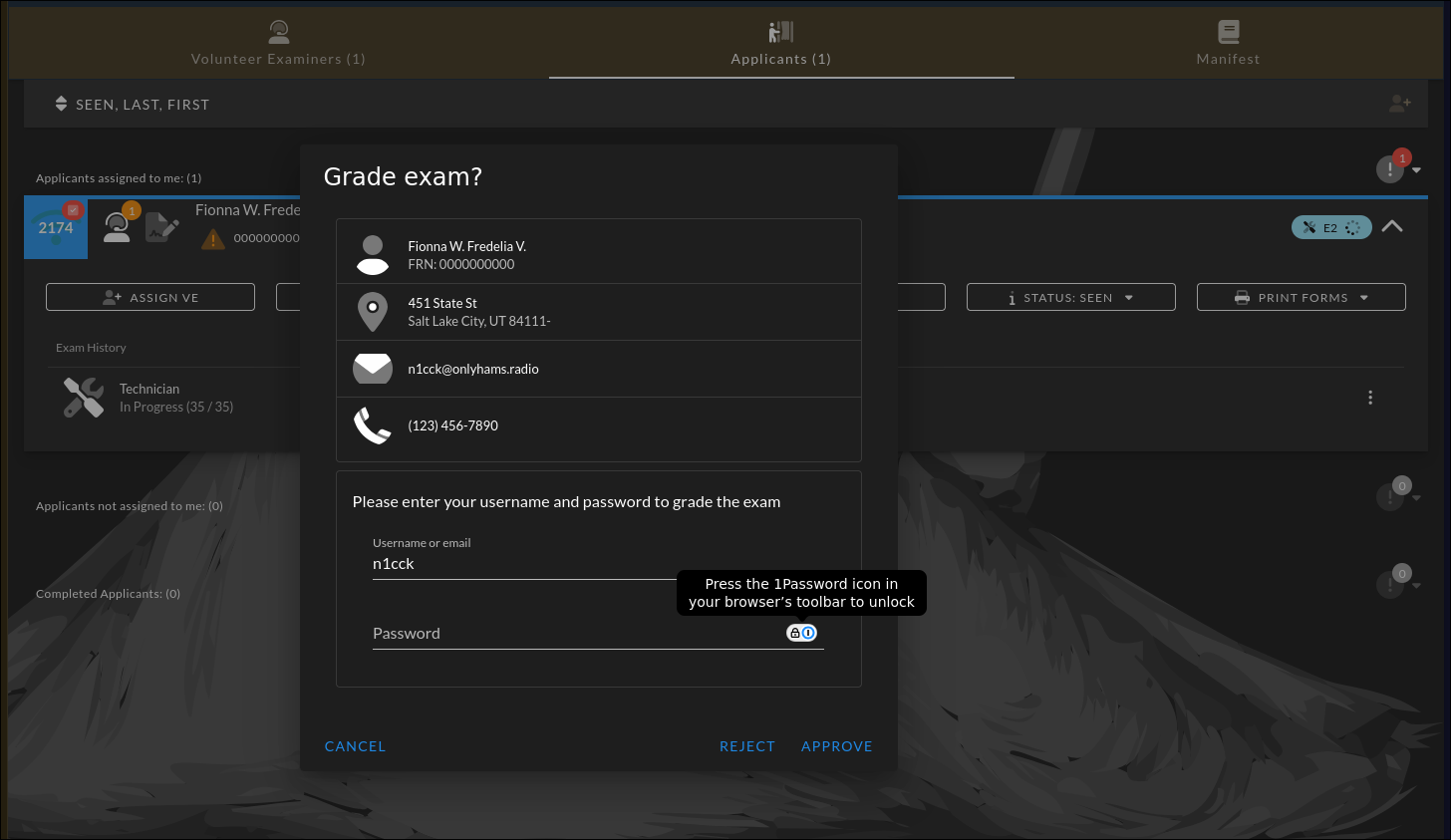
Click the badge to open the grading dialog.
A dialog appears:
Grade exam?
“Please enter your username and password to grade the exam.”
Enter your ExamTools username and password and confirm.
The exam is graded immediately. The result — Pass or Fail with the score — appears on the applicant row automatically.
After grading
The applicant’s portal switches to the Exam Results tab, showing “You passed!” or “You did not pass.” with the score (correct / total).
Depending on the applicant’s situation, one or both of the following buttons appear:
“Start [Element name] exam” (e.g., “Start General exam”) Appears when the applicant is eligible to attempt the next element up in the license hierarchy. Clicking it sends a new Start Exam request to the VEs — follow the same authorize-start and authorize-grade steps for each additional element.
“Finish and Sign Forms” Appears when the applicant has passed at least one element during this session. Clicking it shows a confirmation:
“Are you sure? Once past this point you cannot return and take more exams during this exam session.”
Buttons: Finish and Sign (proceed) / Cancel (return).
When the applicant confirms, they advance to the form-signing flow.