
Exam PDFs are generated from the Generate Exams page, accessible from the sidebar. This is separate from the session view and can be done before exam day.
Generate the exams
Click Generate Exams in the sidebar.
Select a grading method using the buttons at the top:
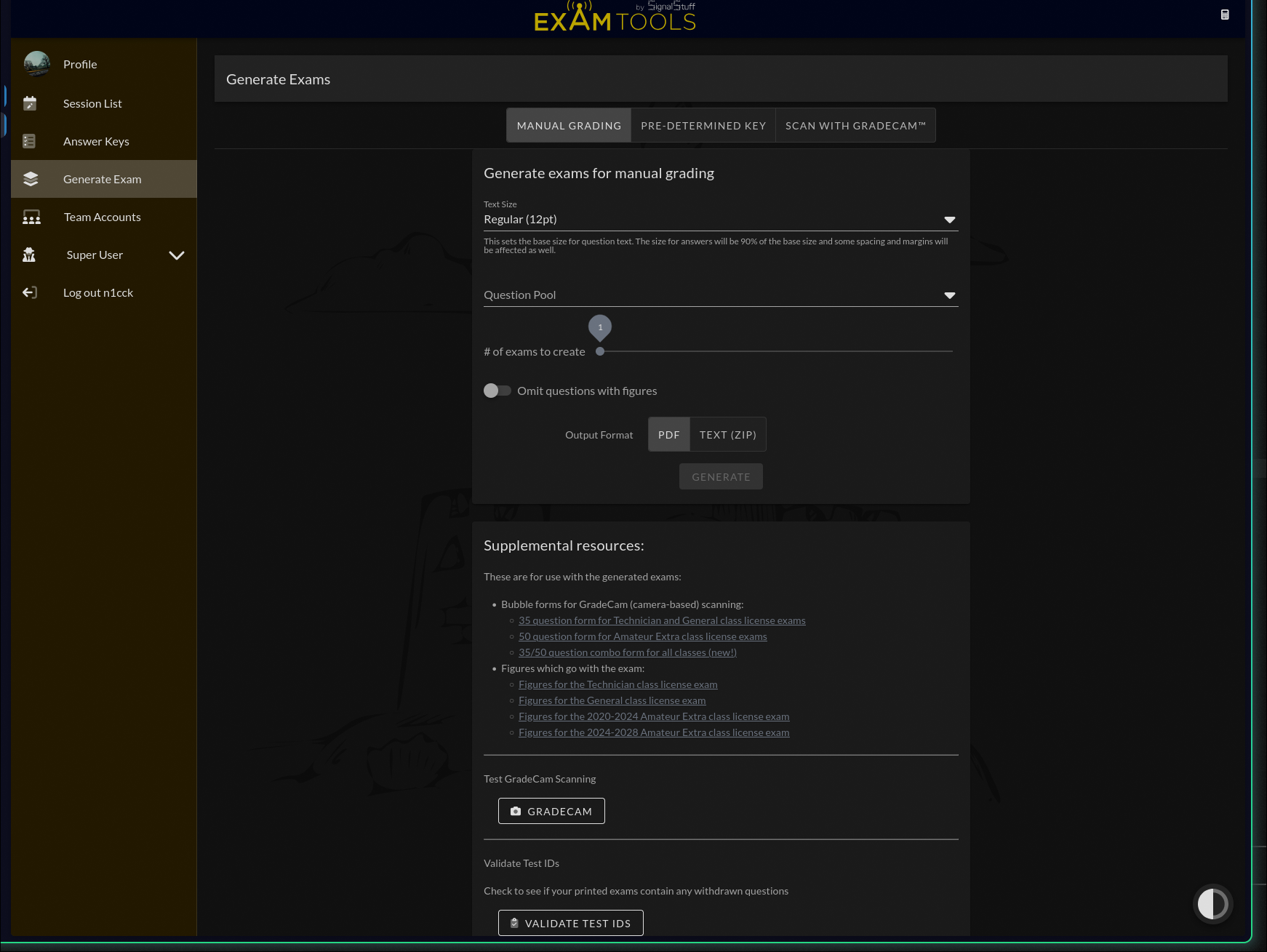
- Manual Grading — produces an exam booklet and a separate answer key PDF for hand grading
- Pre-determined Key — generates exams based on a fixed answer key you select
- Scan with GradeCam™ — produces an exam booklet; bubble forms for scanning are downloaded separately (see below)
Select the Question Pool for the license element you are testing.
Set the number of exams to generate (up to 50).
Exam booklets can be reused across applicants as long as applicants do not write in them. Generate as many booklet variations as you want applicants testing concurrently — not necessarily one per applicant. For GradeCam sessions, print enough bubble forms for every applicant plus a few extras, since bubble forms cannot be reused.
Adjust any other options as needed:
- Text Size — controls the font size in the printed booklet
- Print answer keys? — (GradeCam only) includes answer keys in the output
- Omit questions with figures — excludes questions that require a diagram
- Output Format — PDF (default) or TEXT (ZIP)
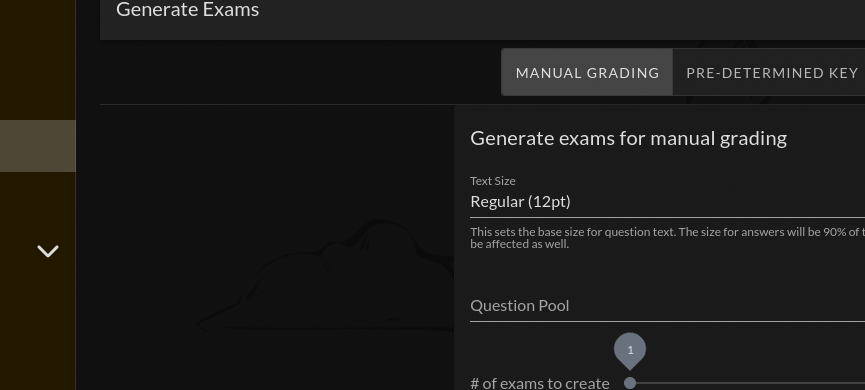
Click Generate. ExamTools builds a unique, randomized exam for each copy and downloads the file.
Keep the answer key secure. Do not distribute it before or during the exam.
GradeCam bubble forms
GradeCam requires a separate bubble form for each applicant — this is the sheet the applicant marks their answers on and the camera reads. Bubble forms are not included in the exam booklet PDF; they are downloaded separately.
On the Generate Exams page, scroll to Supplemental resources and download the appropriate bubble form:
- 35-question form — for Technician and General exams
- 50-question form — for Amateur Extra exams
- 35/50 combo form — works for all elements
Print one bubble form per applicant (plus extras). Bubble forms are not pre-assigned to applicants — the applicant fills in their own Applicant ID (their PIN) and Exam ID (from their booklet) by bubbling the digits, and also bubbles the element (T, G, or E).
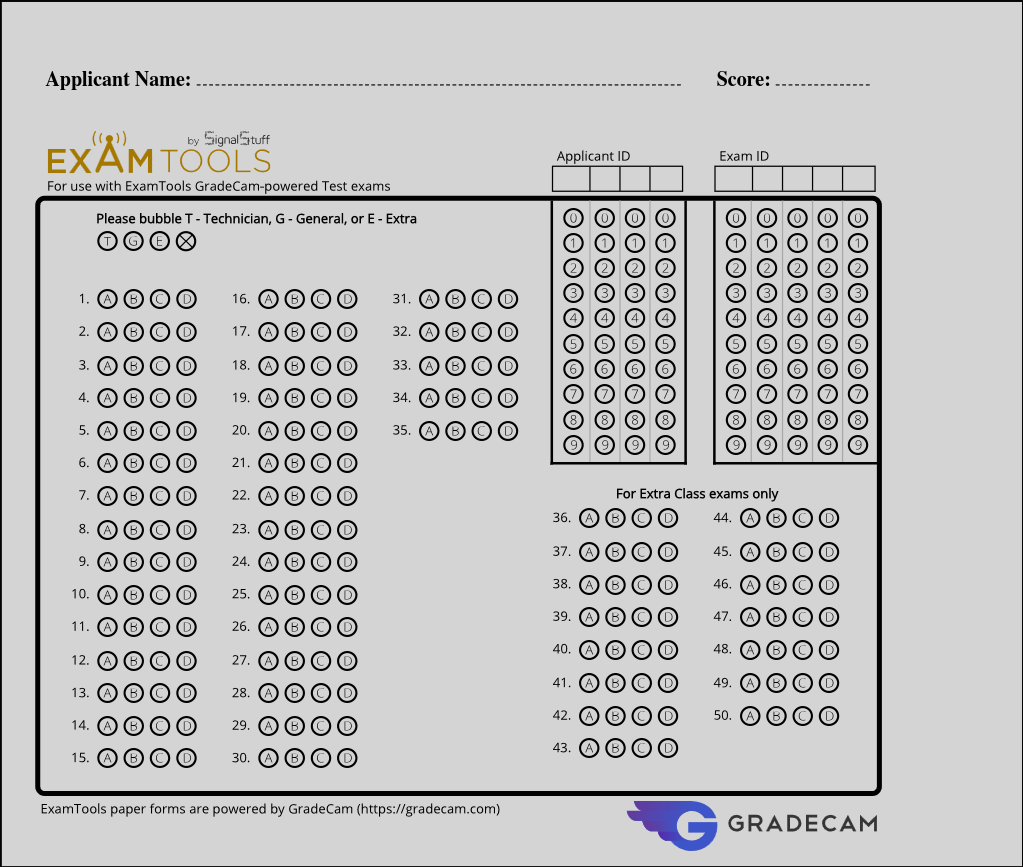
GradeCam reads these bubbled fields to identify the applicant and score the exam against the correct answer key.
Print the exams
- Print at actual size — do not scale to fit. Scaling distorts GradeCam bubble grids.
- Use standard 8.5" × 11" letter paper.
- Print bubble forms on separate pages from the exam booklets.
Verify
Before exam day, check a printed copy:
- Text is fully legible and not cut off at the margins
- GradeCam bubble grids are clear and undistorted