
VEs are added to individual sessions, not to the team account. You can add VEs at any time until the session is finalized.
Important: VEs added to a session appear on the official session manifest submitted to the VEC. Only add VEs who are physically present at the session and should receive credit for participating. Do not add VEs as placeholders or for administrative convenience if they will not actually be there.
Prerequisites
- A session where you are the owner or co-owner
- The VEs you are adding must have an ExamTools account with VE accreditation from the same VEC as the session
Steps
Go to Manage Sessions and open the session.
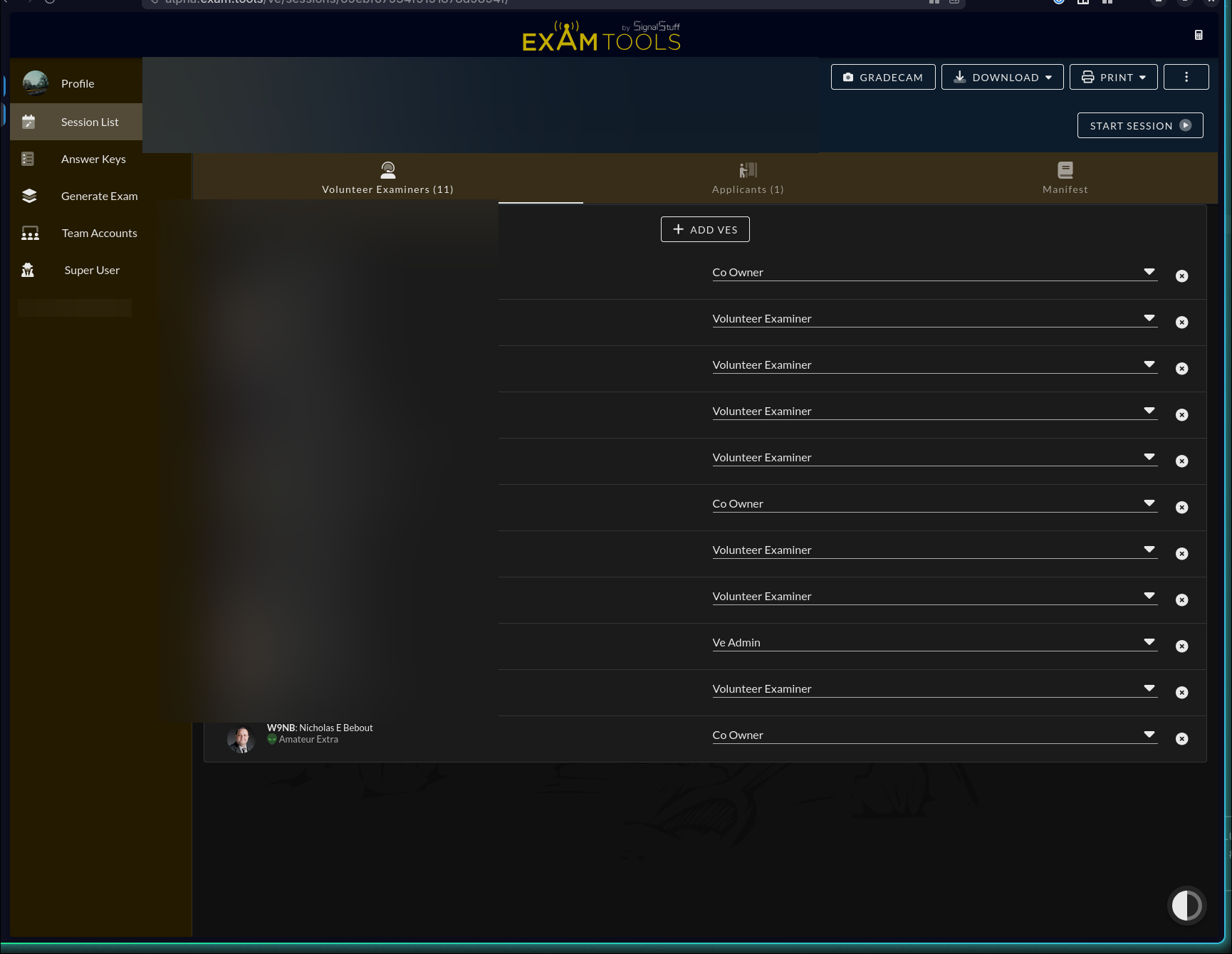
Click the Volunteer Examiner tab (to the left of the active Applicants tab).
Click + ADD VES.
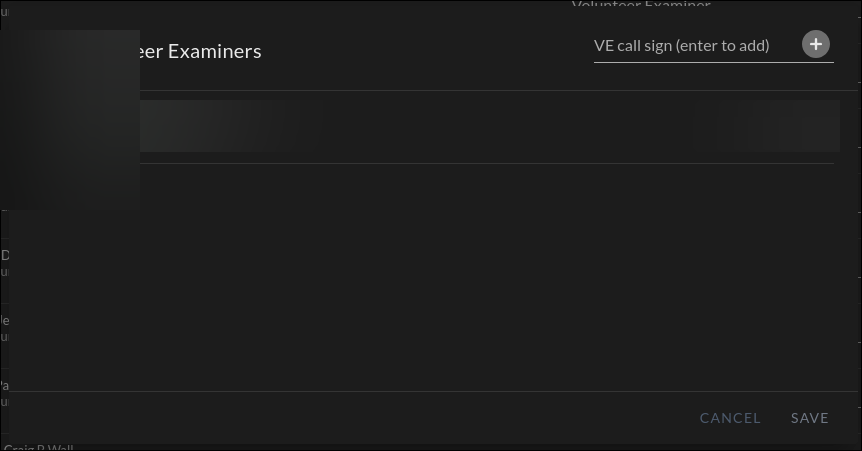
The Add Volunteer Examiners window appears. In the VE call sign (enter to add) field, type a callsign and press Enter. Repeat for each VE you want to add.
If you see NOT REGISTERED next to a callsign, that VE does not have what they need to join the session:
- No ExamTools account → they need to create one
- Wrong VEC accreditation → they need to confirm their VEC accreditation
When you have added all your VEs, click SAVE.
Set VE permissions in the session
After adding VEs, set each person’s role using the dropdown next to their name:
| Role | Use when |
|---|---|
| Volunteer Examiner | Default role — can authorize and certify exams, sign forms, and view applicant information |
| Ve Admin | More experienced VE who can also manage applicant information and assign other VEs to applicants |
| Co-Owner | Trusted lead who needs full session management permissions |
The VE managing the session on exam day must have Co-Owner session permissions.
Joining a session you own
If you are the team owner and see “You are not part of this session” on a yellow alert ribbon when you first open a session, click the JOIN button on the Applicants tab. Then go to the Volunteer Examiner tab and change your own permissions to Co-owner.
Remove a VE from the session
Click the × next to the VE’s name in the Volunteer Examiner tab and confirm.
Do not remove VEs who are currently assigned to an applicant or have already authorized exams. This may cause problems with your session.
Verify
The Volunteer Examiner tab shows all added VEs with their callsigns and permission levels. Confirm you have at least three VEs before starting the session (FCC minimum).