
Cloning copies the settings of an existing session into a new one with a new date. This is the fastest way to schedule recurring sessions — all the team, VEC, team lead, registration, and location settings carry over automatically.
Prerequisites
- At least one existing session to clone from
- Owner, Co-owner, or Schedule permissions on the team
Steps
Sign in to exam.tools and click Session List in the left navigation.
Find the session you want to clone and open it.
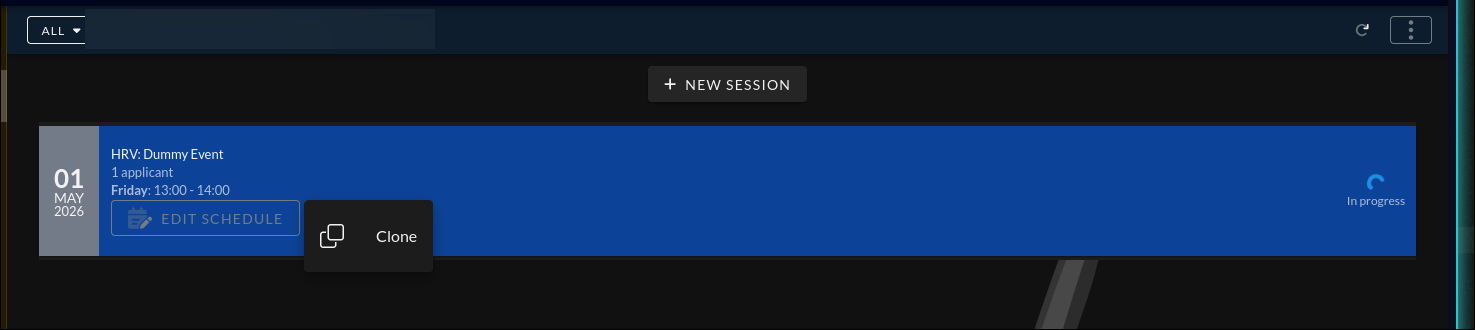
Click Clone session schedule (available from within the session view or session list menu).
The session form opens pre-filled with the original session’s settings. The form title reads Clone session.
Update the Start date and Start time for the new session.
Review all other settings and adjust anything that has changed — location, event name, team lead, registration options, etc.
Clone VE list? — A toggle appears asking whether to copy the VE assignments from the original session to the new one. Choose Yes to carry them over, or No to start with an empty VE list.
Click Save.
Verify
The new session appears in Session List with status Pending and the new date. Confirm the team, VEC, and event name are correct.