
After creating a session, you can edit any of its settings until the session is finalized. The same form used to create the session is used to edit it.
Open a session for editing
Sign in to exam.tools and click Session List in the left navigation.
Click on the session you want to edit to open it.
Click EDIT SCHEDULE near the top of the session view.
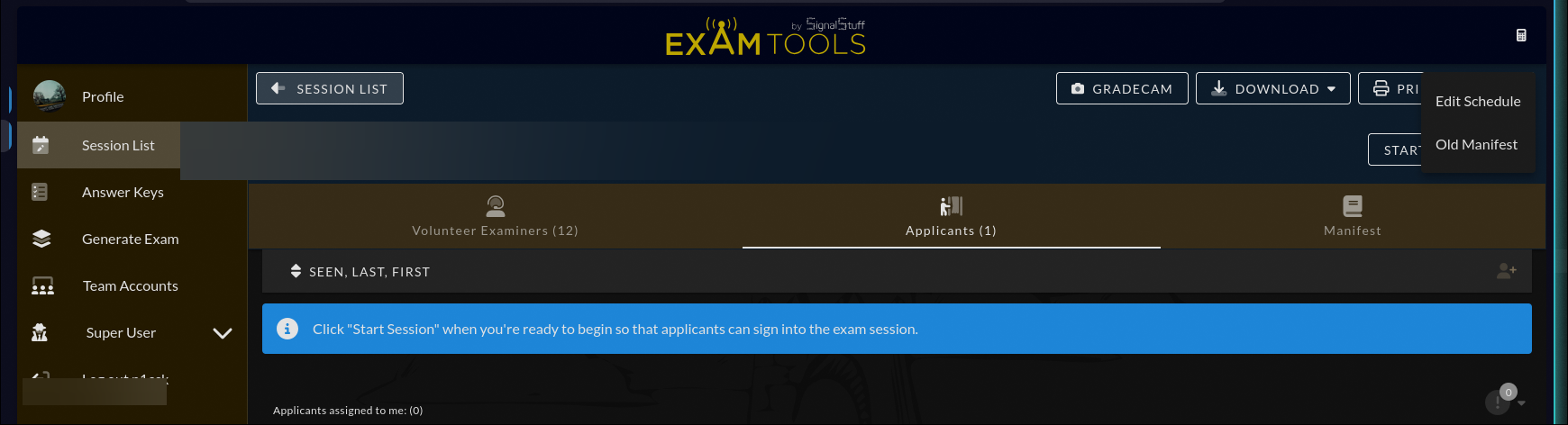
The session form opens with the current settings loaded. Make your changes and click Save.
Common configuration tasks
Set the session to visible
If you created the session as Hidden, change Listing Visibility to Visible when you are ready for applicants to see and register.
Update the location
Change the selected location in the Locations section. If the location you need does not exist yet, click Add location… to add one to your team. See Edit team settings →.
Change the session notes
Click Edit in the Publicly visible notes section to open the markdown editor. These notes appear on the HamStudy listing page. Include exam rules, payment information, and contact details.
Change the registration cap
In the Registration options section, adjust Maximum number of Participants or set it to unlimited.
Change email notifications
In the exam elements section, update Receive email notifications on applicant registration? and the notification address if needed.