
Applicants can be added and managed from the Applicants tab of the session view. Most actions are available both before the session starts and while it is running, as long as the applicant has not been individually finalized.
Applicant list
The applicant list shows every registered applicant as a row. Each row displays:
- PIN — The applicant’s session PIN; color indicates connection status
- VE count badge — How many VEs are assigned (turns amber when under 3)
- Applicant name and callsign/FRN
- Exam element chips — One chip per element being attempted, showing pass/fail/in-progress state
- Signature indicator — Shows how many assigned VEs have signed
Click a row to expand it and see all available actions for that applicant.
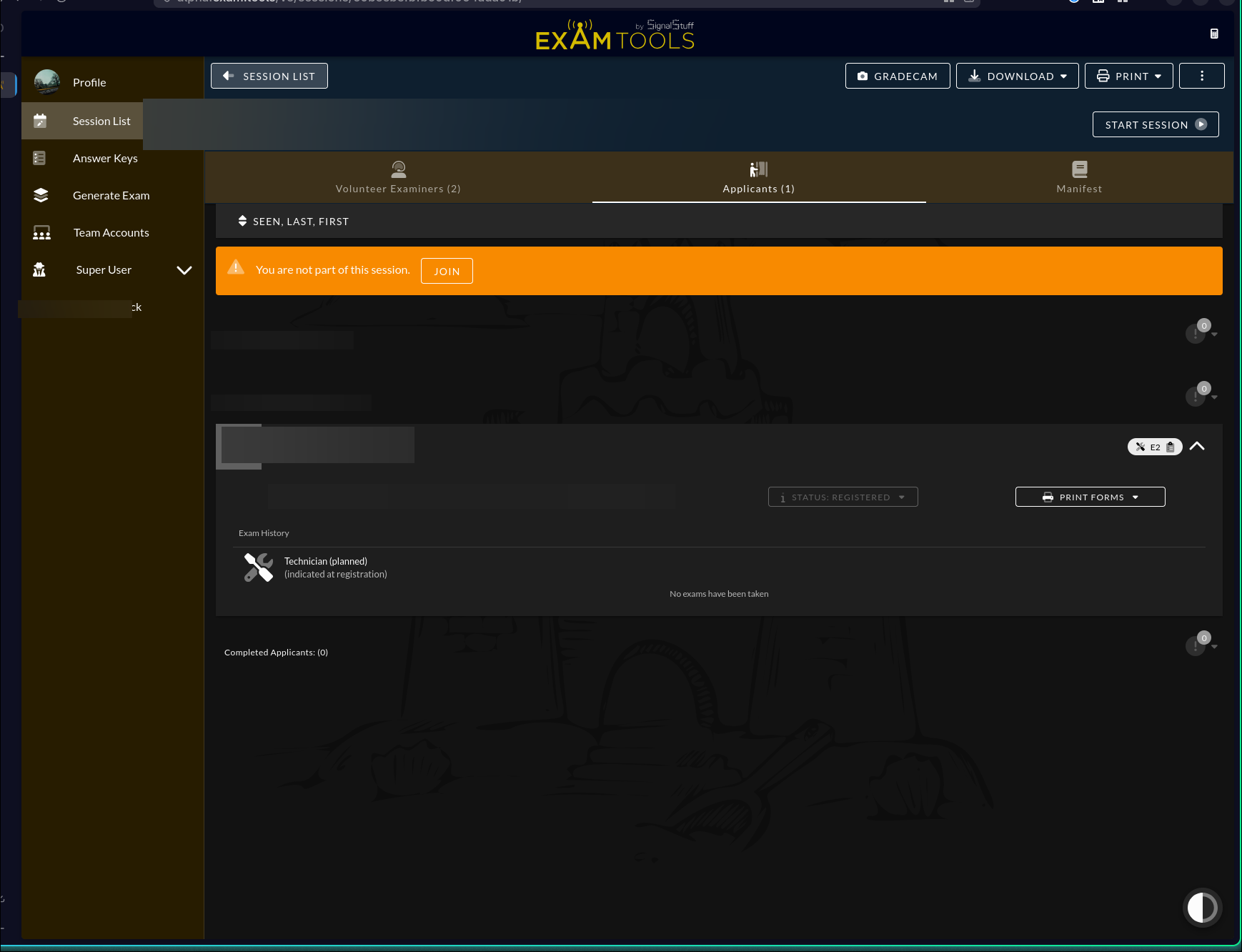
Sorting the list
Click the sort icon in the applicant toolbar to change the sort order. Options include:
- Seen, Last/First name
- Seen, PIN
- Seen, Created
- Last/First name (unsorted by status)
- PIN
- Created
The “Seen” prefix groups applicants who have connected to the session ahead of those who have not.
Applicant statuses
| Status | Meaning |
|---|---|
| Registered | Applicant has registered but has not yet connected to the session |
| Seen | Applicant has connected; session is in progress |
| Ready to sign | Exam is complete and graded; waiting for VE signatures |
| Signed | All required signatures collected |
| Finalized | Applicant record is locked and complete |
Ve Admins can manually change an applicant’s status using the Status button in the expanded applicant row.
Add an applicant manually
Whenever possible, ask the applicant to register through HamStudy. You can also share the session’s registration link by clicking the link icon next to the session title at the top of the session view.
A Co-Owner can add an applicant manually when special circumstances make regular registration impractical. Before adding the applicant, make sure they have agreed to the Privacy Policy. If the applicant is under 13, make sure they have submitted the required COPPA form.
Click the Add Applicant icon (person with a plus) in the applicant toolbar.
Fill in the applicant’s information (FRN or callsign, name, elements desired).
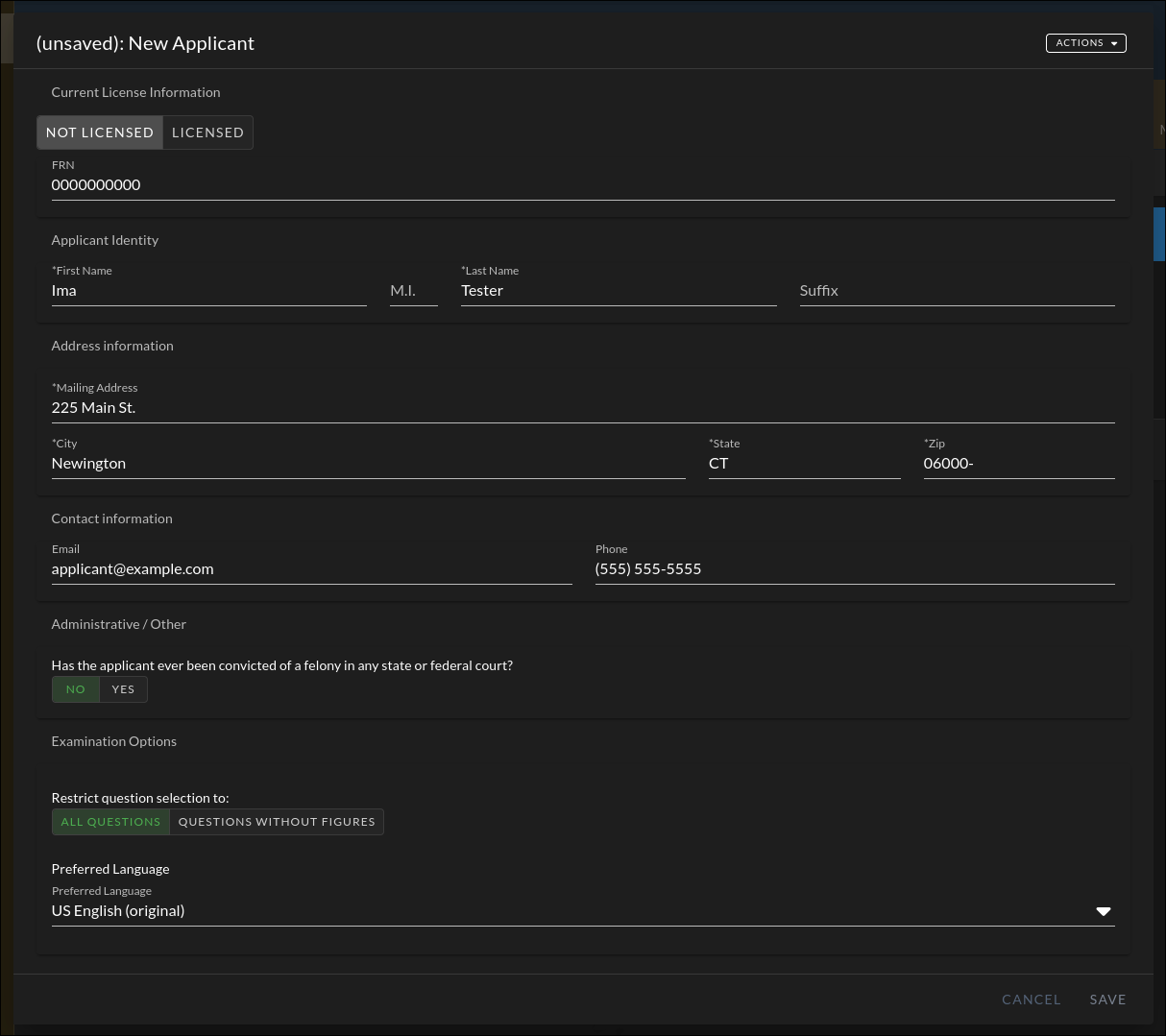
Click Save. The applicant appears in the list and receives a PIN if PIN issuance is enabled.
VE assignment
FCC rules require at least three VEs to be assigned to each applicant during their exam. Each VE on the session can self-assign and self-unassign using the Assign to me / Unassign buttons. Ve Admins and Co-Owners can assign or unassign any VE using the Assign VE / Unassign VE dropdowns.
Actions on an expanded applicant
Expand an applicant row to see all available actions. Which buttons appear depends on your session role and the applicant’s current state.
Authorize actions
VEs respond to applicant requests directly from the session view. When an applicant requests permission to join, start an exam, or have their exam graded, a pending-action badge appears on the applicant list. Click the badge to respond.
| Action request | What it means |
|---|---|
| Join Session | Applicant is asking to enter the session |
| Start Exam | Applicant is asking to begin their exam |
| Grade Exam | Exam is complete; applicant is requesting grading |
Manage menu
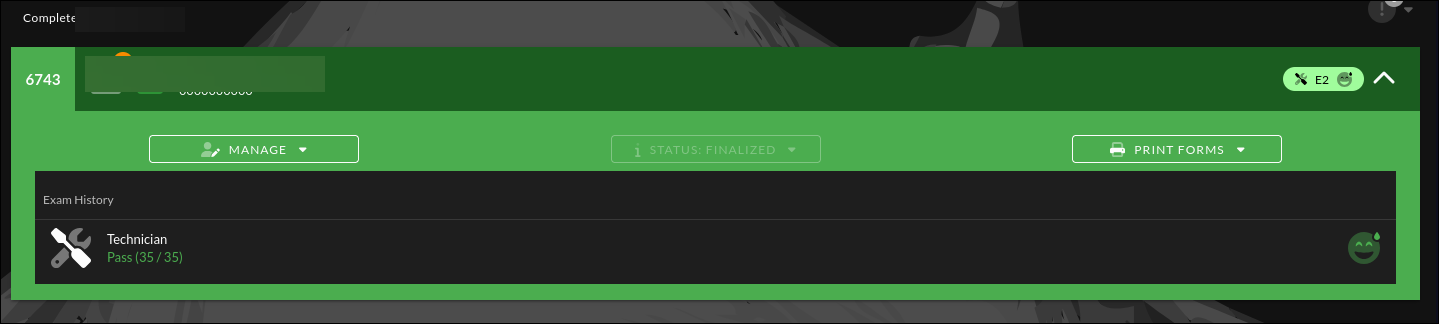
The Manage button (person with edit icon) opens a dropdown with the following options depending on role and applicant state:
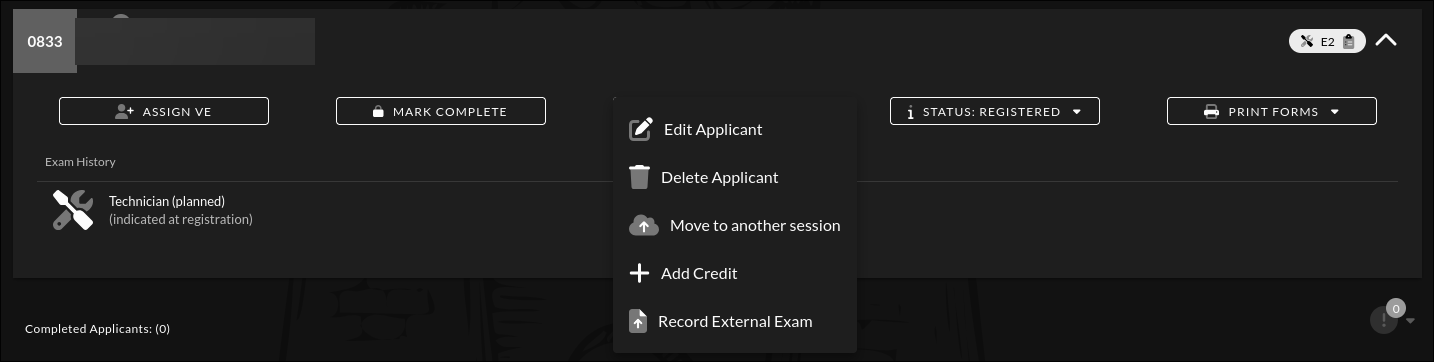
| Action | Available when | Who can |
|---|---|---|
| Edit Applicant | Session not finalized; applicant not finalized | Ve Admin or higher |
| View Applicant | Anytime | All VEs (read-only) |
| Re-open | Applicant is finalized | Co-Owner |
| Delete Applicant | Session not finalized | Co-Owner |
| Email CSCE | Applicant is finalized and passed | Ve Admin or higher |
| Move to another session | Session not finalized | Co-Owner |
| Add Credit | Session not finalized | Co-Owner |
| Record External Exam | Session not finalized | Co-Owner |
| Evict Applicant | Applicant is connected | Ve Admin or higher |
Edit / View Applicant
Edit Applicant is available at any point before the applicant is finalized — including before the session has started, during the session, and until the individual applicant record is marked complete. Once finalized, the record becomes read-only (use Re-open to unlock it).
The dialog includes editable fields for name, FRN, callsign, address, license class, email, phone, and felony status, plus exam preference options:
- Restrict question selection to: — Limits the exam to questions without figures (accessibility option; Co-Owner only)
- Preferred Language — Changes the exam language if supported by the VEC
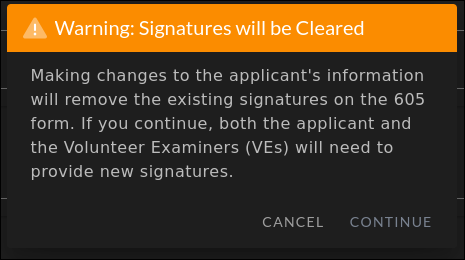
Warning: editing applicant information clears signatures. If the applicant or any VE has already signed the Form 605 and you change any personal information field (name, address, FRN, callsign, license class, contact info, or felony status), ExamTools will warn you: “Making changes to the applicant’s information will remove the existing signatures on the 605 form. If you continue, both the applicant and the Volunteer Examiners (VEs) will need to provide new signatures.” You must confirm before the save proceeds. The application title for this dialog is “Warning: Signatures will be Cleared”.
Delete Applicant
Permanently removes the applicant from the session. Requires confirmation showing the applicant’s name, FRN, and callsign. Cannot be undone.
Move to another session
Transfers the applicant to a different session. The destination session is selected from a dropdown showing sessions associated with your teams within the next 6 months. The current session is excluded from the list.
Constraints:
- The source applicant must not be finalized
- The source session must not be finalized
- The destination session must be a different session from the current one
- The destination session must be within the next 6 months
If the applicant has any signatures on their record, moving them to another session will require those signatures to be collected again in the new session.
Re-open (unfinalize applicant)
Unlocks a finalized applicant record so corrections can be made. Requires the Co-Owner’s password.
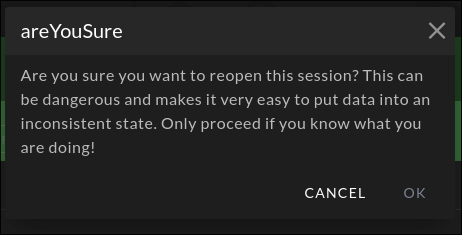
Use with caution. ExamTools warns: “This application has already been finalized; re-opening it is the equivalent of tearing up the existing CSCE and 605 forms in order to make additional changes — except that copies may have already been made. This could result in incorrect signed documentation being present outside of the system.” A full audit of this action is saved and can be reviewed by the VEC.
After re-opening, all signatures are cleared and must be collected again before the applicant can be finalized a second time.
Email CSCE
Emails the applicant’s Certificate of Successful Completion of Examination as a PDF. Available after the applicant’s record is finalized and they have passed at least one element. ExamTools asks for confirmation if the CSCE has already been emailed.
Add Credit / Record External Exam
Used in specific workflows to credit an applicant for passing an element outside the current session. Use only if directed by your VEC.
Evict Applicant
Forcibly disconnects the applicant from the session. They can reconnect unless the session is stopped. Use if an applicant is unresponsive or needs to be removed from an active connection.
Status menu
The Status button shows the applicant’s current status and opens a dropdown to manually set it. Available to Ve Admins and Co-Owners while the session is active.
Mark Complete
The Mark Complete button finalizes the applicant’s record. This locks their data and marks them as done. Required for each applicant before the session itself can be finalized.
Prerequisites for marking complete:
- All exams are graded (or voided)
- The applicant has signed their Form 605 and CSCE
- All required VEs have signed
Void / Restore exam
Within the expanded applicant row, each exam result has an overflow menu. Ve Admins can:
- Void Exam — Invalidates the exam result. Requires selecting a reason from a dropdown (e.g., “Courtesy retry for examinee,” “Correcting a mistake by VE”). The reason appears in the session report.
- Restore Exam — Reverses a void and restores the original result.
Print Forms
The Print Forms button opens a dropdown to print or view the applicant’s forms (Form 605, CSCE, etc.) as PDFs in a new tab.
After session finalization
Once the session is finalized, the applicant list becomes read-only. You can still:
- Email CSCE to applicants who passed
- Re-open individual applicants if a correction is needed (Co-Owner; use with care — requires password and voids all signatures)
- View applicant information