
Create a team account in ExamTools to schedule sessions and manage your administrative team.
Prerequisites
- Team lead status confirmed — your Profile must show Team Lead for at least one VEC
Steps
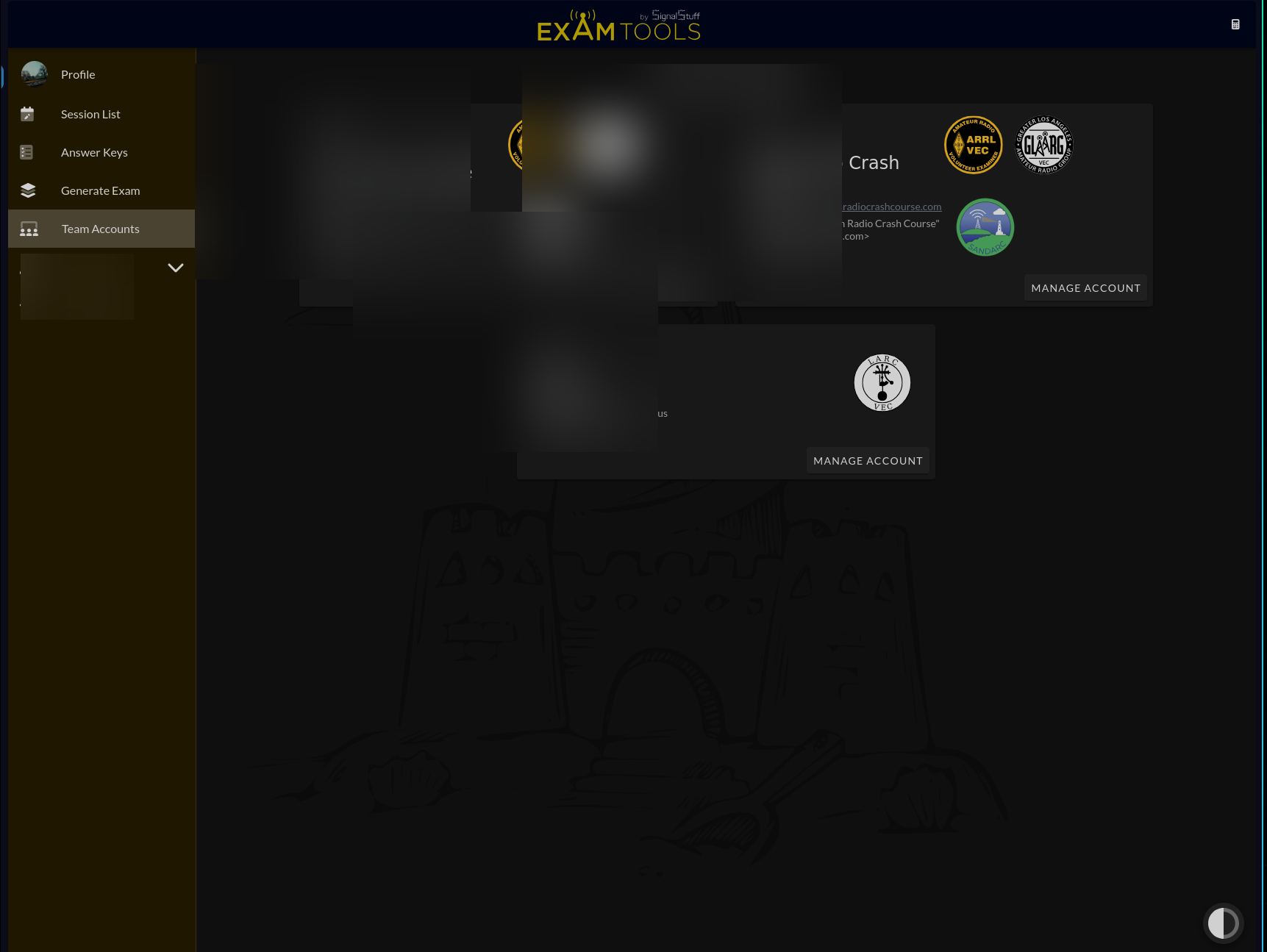
Sign in to exam.tools and click Team Accounts in the left navigation.
Click + New Team Account.
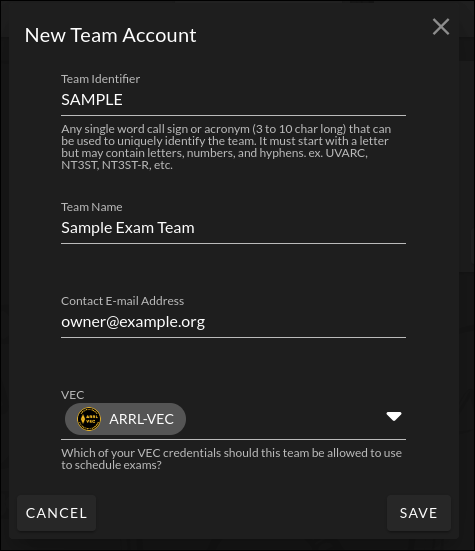
The New Team Account window appears. Fill in the four fields:
Team Identifier — A short unique code for your team. Rules:
- Must start with a letter
- 3–10 characters
- Letters, numbers, and hyphens only
- Examples:
SDHC,NT3ST-R - This identifier appears in all your session listings on HamStudy. It cannot be changed after creation, so choose carefully. If you don’t have a team acronym, your own callsign works well.
Team Name — The display name for your team or club.
Contact E-mail Address — A valid email for the team account administrator.
VEC — Select the VEC(s) under which this team will schedule sessions. You can only select VECs for which you hold team lead credentials.
Click Save.
Delegate your VEC credentials
Before the team can schedule sessions, at least one owner or co-owner must delegate their team lead credentials to the team. This is required even if you are the only administrator.
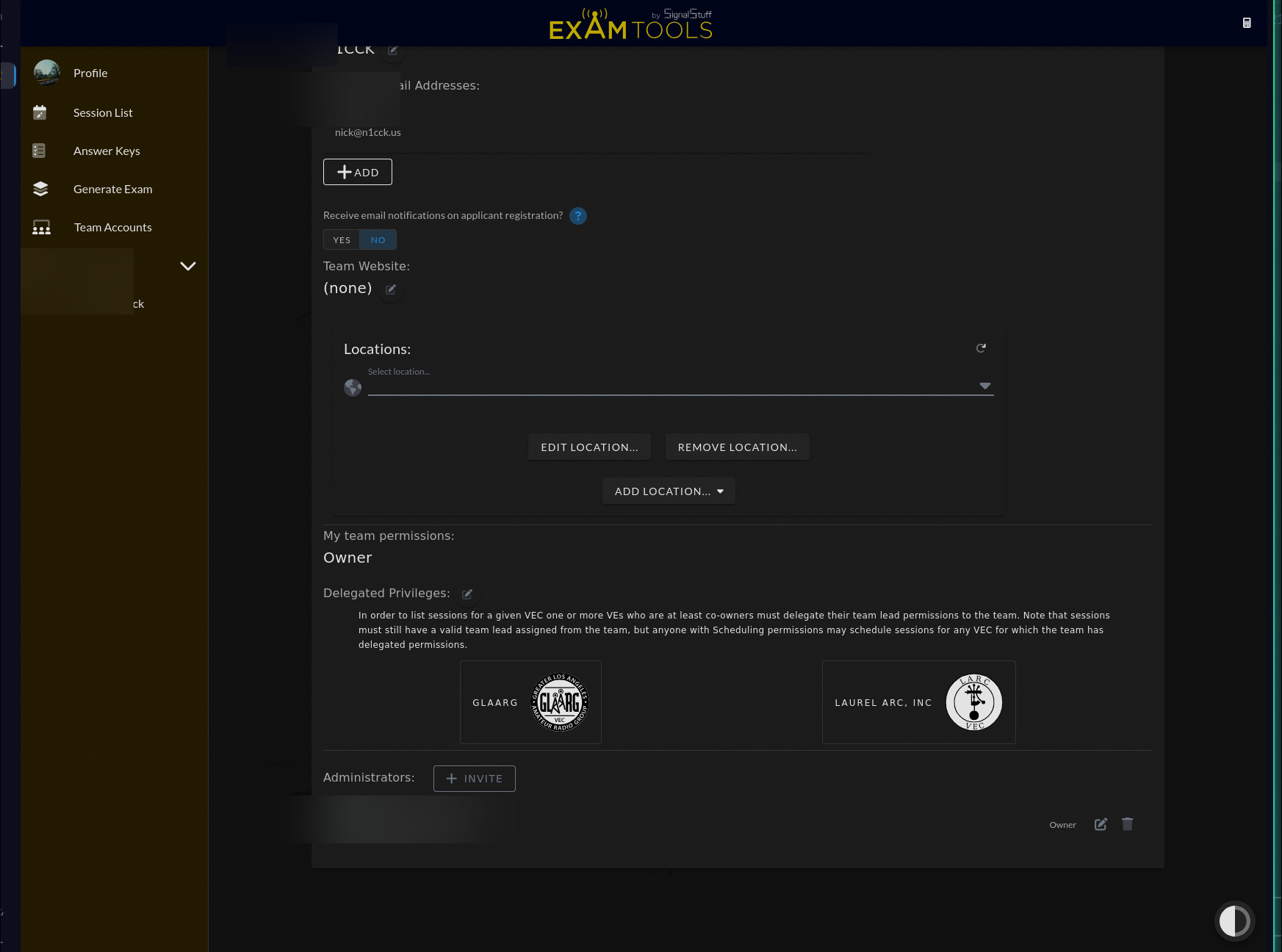
On the Manage Account page for your new team, find the Delegated Privileges section. It appears below your membership information.
Click the pencil (edit) icon next to Delegated Privileges.
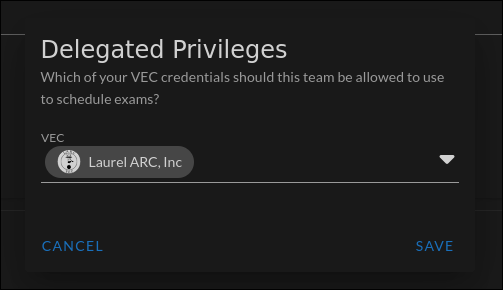
The Delegated Privileges dialog opens with the subtitle: “Which of your VEC credentials should this team be allowed to use to schedule exams?”
Check the VEC(s) you want to make available to this team.
Click Save.
After saving, the delegated VECs appear as cards in the Delegated Privileges section. The team can now schedule sessions for those VECs.
If the Delegated Privileges section is not visible, confirm that your team membership shows Owner or Co-owner — only owners and co-owners can delegate credentials.
Verify
Your new team appears in Team Accounts. Click Manage Account to confirm the identifier, name, and VEC are correct.