
Edit your team’s profile, contact information, website, and saved locations from the Manage Account page.
Prerequisites
- Owner or co-owner permissions on the team (required to edit most fields)
Navigate to Manage Account
- Sign in to exam.tools and click Team Accounts in the left navigation.
- Find your team and click Manage Account.
Edit team fields
Most fields use inline editing: click the pencil (edit) icon next to a value to open an edit field, make your change, then click Save or press Enter. Click Cancel to discard the change.
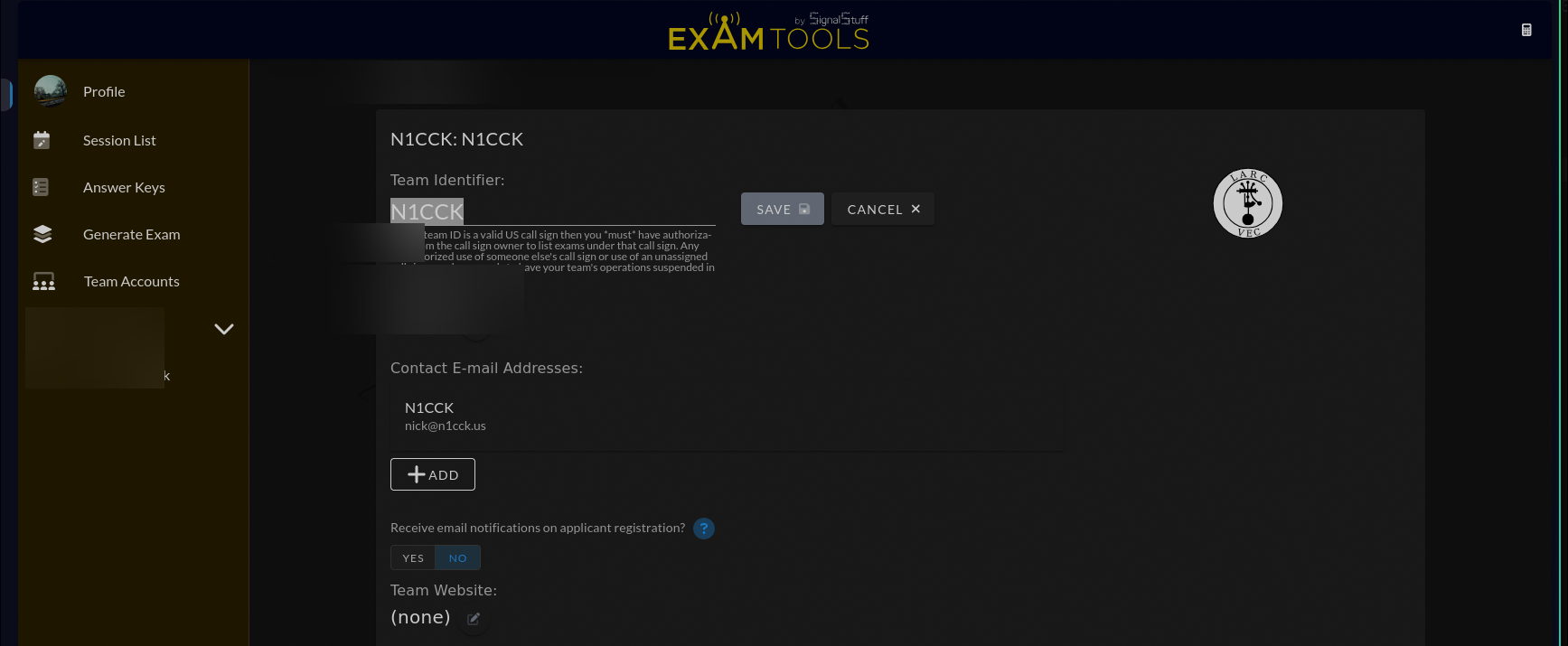
Team Identifier
The Team Identifier is the short code that appears in session listings on HamStudy and in session URLs. It can be changed after creation, but do so with caution — any existing links or bookmarks using the old identifier will break.
Rules for the identifier:
- Must start with a letter
- 3–10 characters
- Letters, numbers, and hyphens only
If the identifier matches a valid US callsign, you must have authorization from the callsign owner to list exams under it.
Team Name
The Team Name is the human-readable display name shown to applicants browsing sessions. The minimum length is 5 characters.
Contact E-mail Addresses
The Contact E-mail Addresses field accepts one or more email addresses for the team. These are the primary point of contact for applicants and ExamTools staff. You cannot remove the last email address — the team must always have at least one.
Below the address list is a toggle labeled Receive email notifications on applicant registration? Set this to Yes to receive an email each time someone registers for a session.
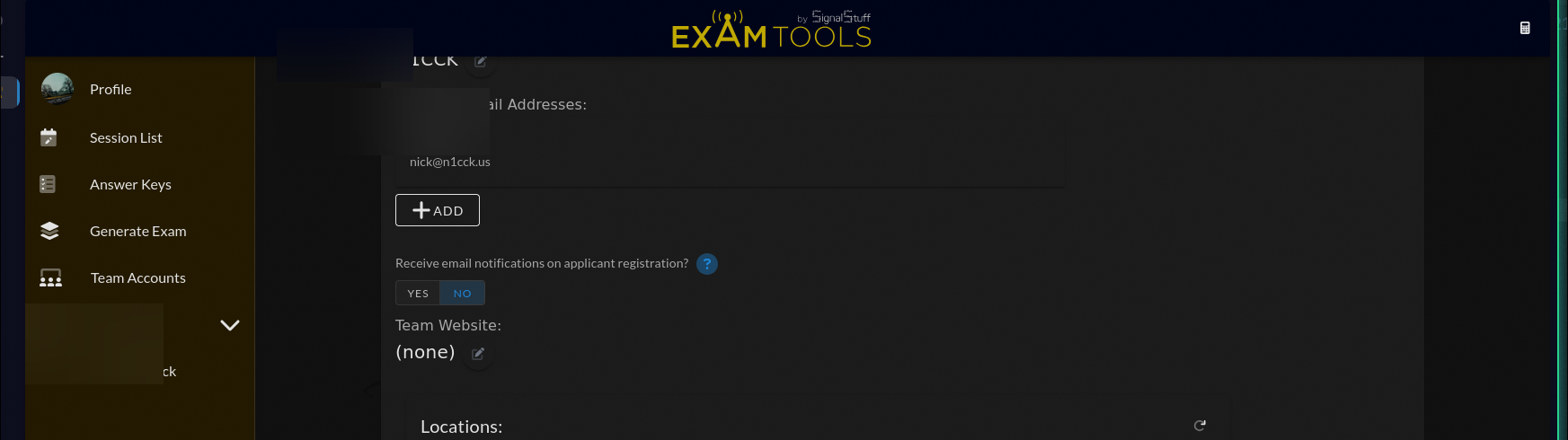
This setting can be overridden on a per-session basis.
Team Website
Enter a valid http:// or https:// URL for the team’s website. This is optional.
Manage saved locations
The Locations section stores addresses that can be reused across sessions. Saved locations appear in the session creation form as quick-select options.
To add a location:
Click Add Location and choose either Simple Entry (manual form) or Advanced (Google Maps picker).
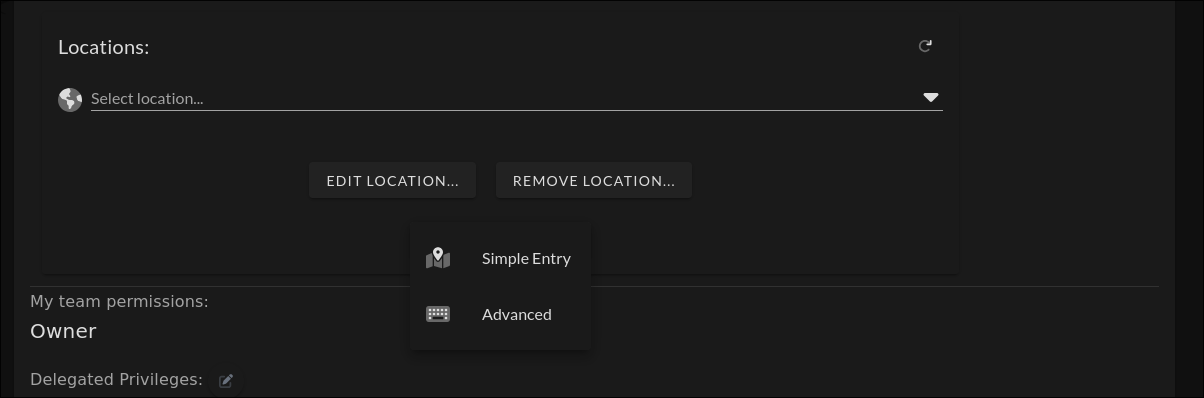
To edit a location:
- Select the location from the dropdown and click Edit Location.
To delete a location:
- Select the location from the dropdown and click Delete Location. If the location is used by existing sessions, those sessions will no longer have a team address attached.
Delegated Privileges
The Delegated Privileges section shows which VECs you have delegated to this team. Only owners and co-owners see this section.
To change which VECs are delegated, click the pencil icon. See Create a team → for full instructions.