
Team administrators are the small group of VEs who handle scheduling, session management, and team settings. This is not the same as the VEs who proctor exams — regular VEs are added to individual sessions, not to the team account.
Adding VEs to a session? See Managing VEs →
Prerequisites
- A team account where you are the owner or co-owner
Invite an administrator
Go to Team Accounts in the left navigation and click Manage Account on your team.
Find the Administrators section and click + INVITE.
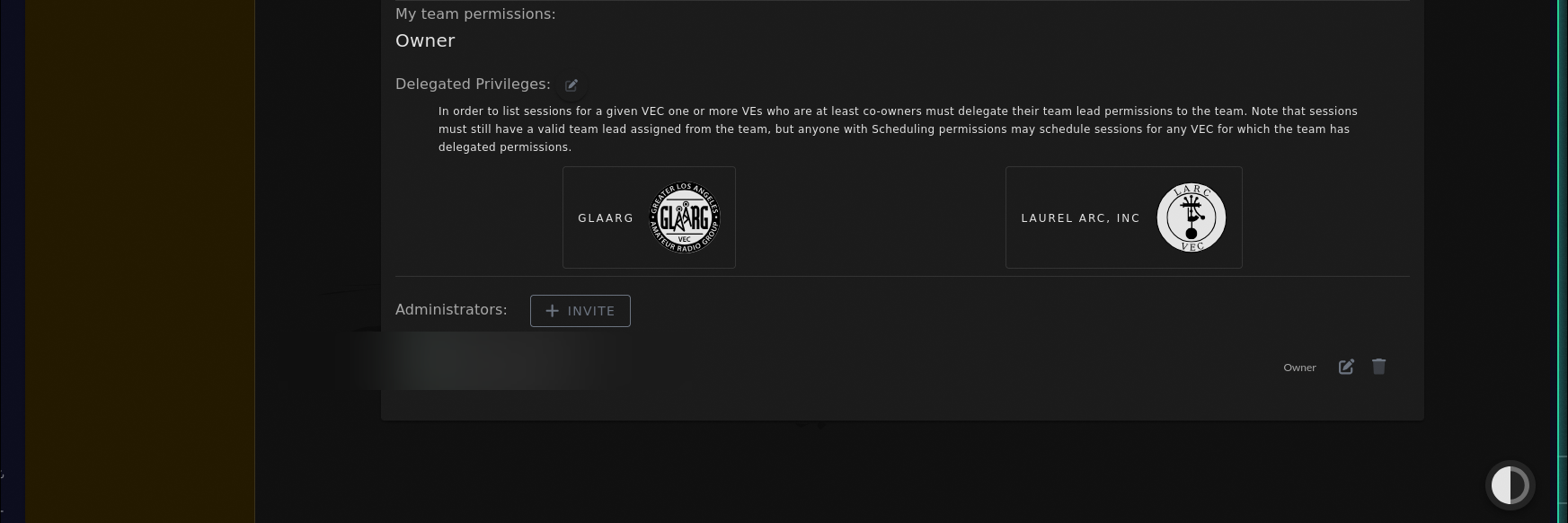
Enter the callsign of the VE you want to add. They must already have an ExamTools account.
The invitation is sent. The VE must accept the invitation before they appear as an active administrator.
Set administrator permissions
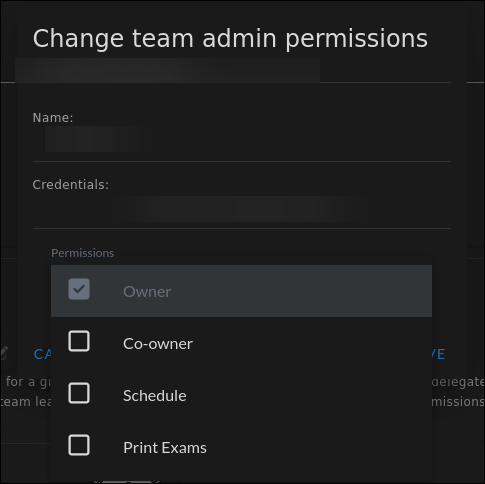
When editing an administrator’s permissions, choose from:
| Permission | What it allows |
|---|---|
| Owner | Full control over the team, including adding and removing other owners. Most teams should have only one owner. |
| Co-owner | Everything an owner can do, except adding or removing other owners and co-owners. |
| Schedule | Create and edit exam sessions for the team. Cannot change team settings. |
| Print Exams | Generate and print paper exams for the team. |
To change a permission:
Find the administrator in the Administrators list.
Click the Edit (pencil) icon next to their name.
Select the new permission level from the Permissions dropdown.
Click Save.
Remove an administrator
- Find the administrator in the list.
- Click the Delete (trash) icon next to their name.
- Confirm when prompted.
Do not remove administrators who are currently assigned as team lead on open sessions.
Cancel a pending invitation
Pending invitations appear under Pending Members. Click the × icon to cancel an invitation.
Verify
The Administrators list shows each person’s callsign, display name, and current permission level.